All Events Page Overview
Table of Contents
- Overview
- Search, Date Range, and Filters
- Buttons Above the List
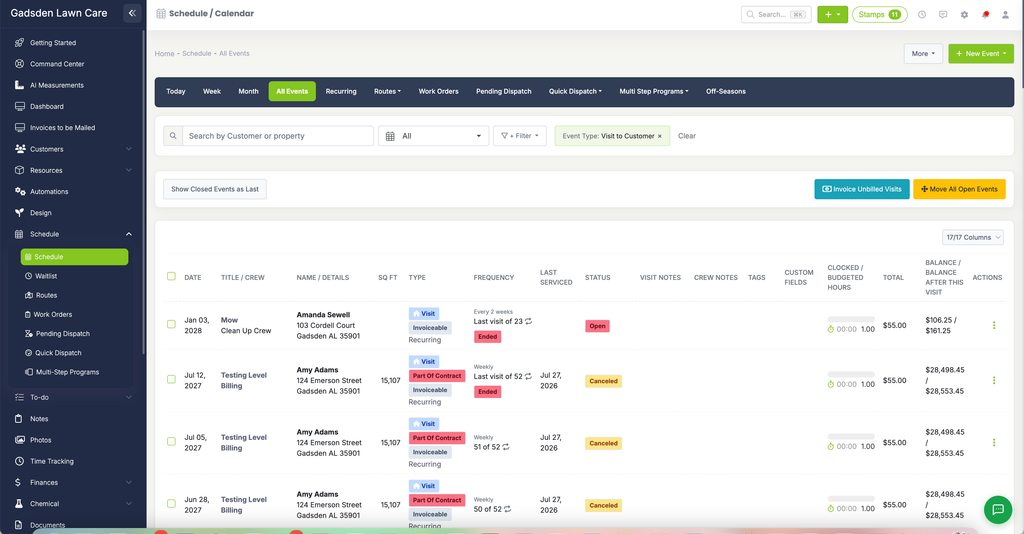
- The Events List
- Working with Several Events at Once
Overview
The All Events tab shows every scheduled event as a list, based on the filters you choose. It’s the best place to find a specific visit, review a long stretch of your schedule, or act on many events at once.
Go to the Schedule tab and click All Events.
Search, Date Range, and Filters
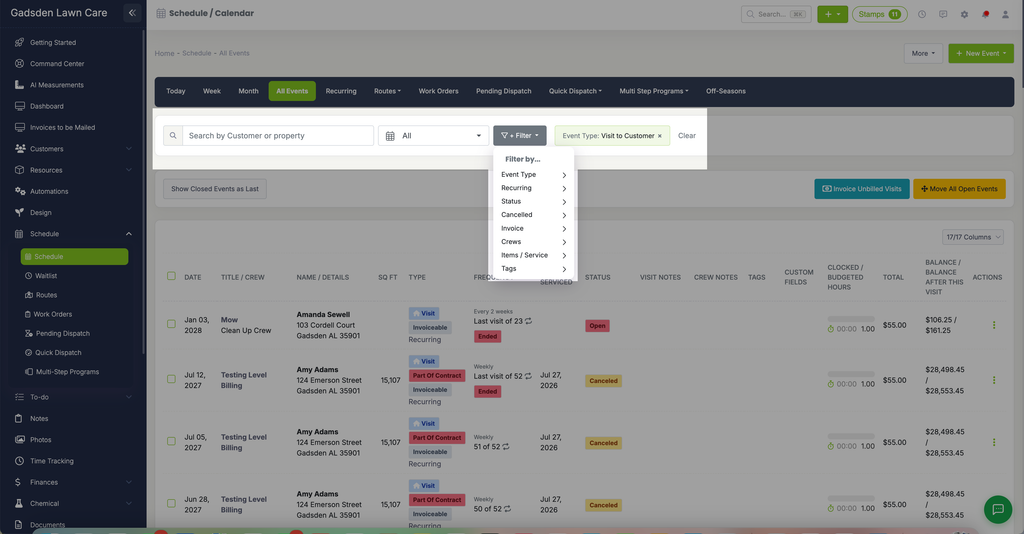
Across the top of the page you can narrow down what’s shown:
- Search by Customer or property — type to find events for a specific customer or address.
- Date range — the calendar dropdown (set to “All” by default) lets you view all events or pick a date range to see only events in that window.
- “+ Filter” — opens a “Filter by…” menu with Event Type, Recurring, Status, Cancelled, Invoice, Crews, Items / Service, and Tags. Each one expands into its own set of options.
Filters you’ve applied show as removable chips next to the Filter button (for example, “Event Type: Visit to Customer”). Click the x on a chip to remove just that filter, or click “Clear” to remove them all.
Buttons Above the List
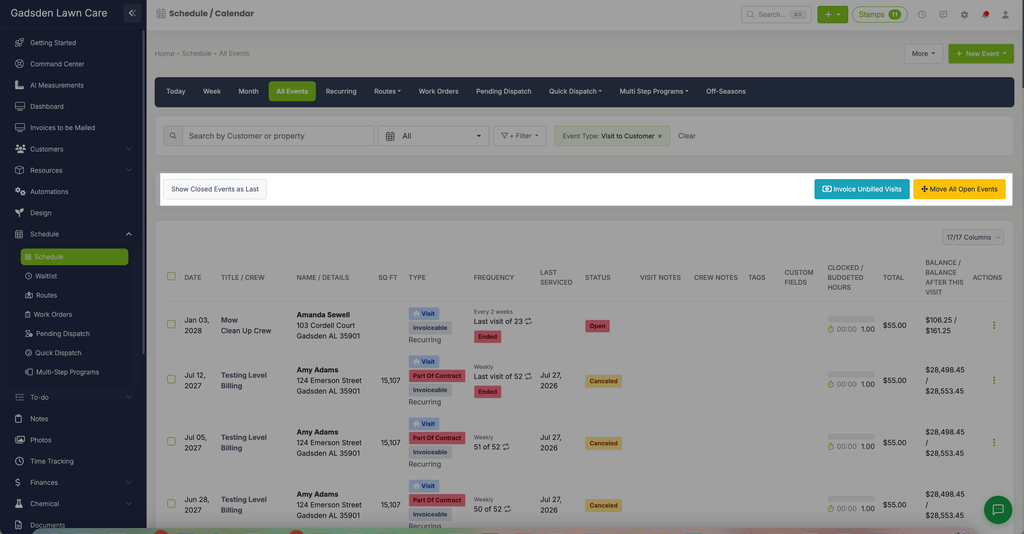
- Show Closed Events as Last — moves closed events to the end of the list so your open events stay at the top.
- Invoice Unbilled Visits — creates invoices for any visits that are closed but haven’t been invoiced yet.
- Move All Open Events — shift all of your open events by a number of days. See Move All Open Events for the steps.
The Events List
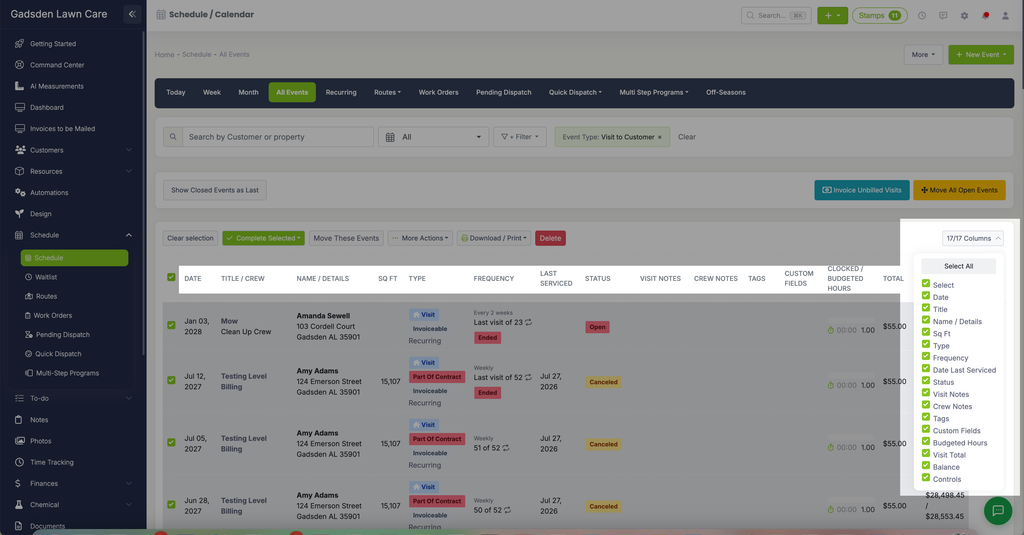
Each event in the list shows:
- Date
- Title / Crew
- Name / Details — the customer name and property address
- Sq Ft
- Type — labels such as Visit, Invoiceable, Recurring, or Part Of Contract
- Frequency — how often a recurring event repeats, and where it falls in the series (for example, “51 of 52”)
- Last Serviced
- Status — such as Open or Canceled
- Visit Notes, Crew Notes, Tags, and Custom Fields
- Clocked / Budgeted Hours
- Total
- Balance / Balance After This Visit
- Actions — the three-dot menu on the right of each event, with Edit, Cancel, and Delete
Click the “17/17 Columns” dropdown to choose which columns are shown.
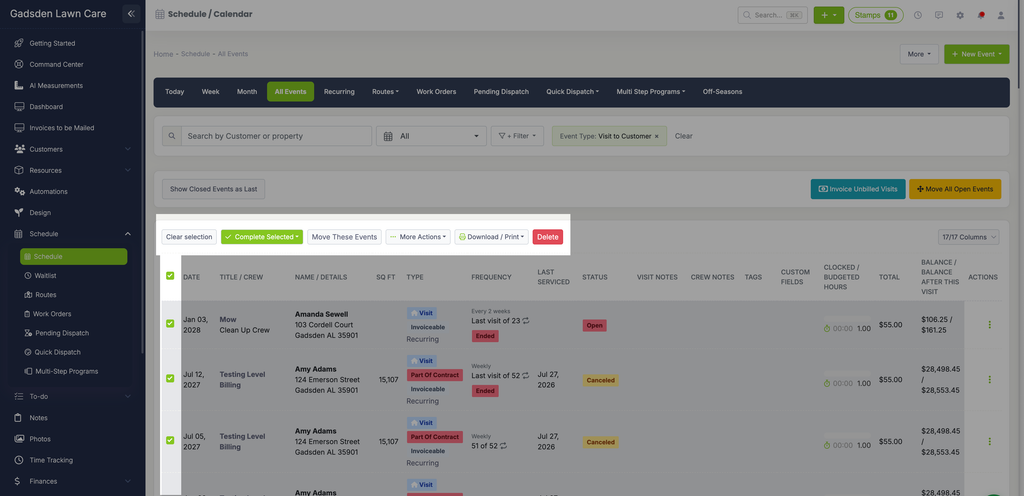
Working with Several Events at Once
Check the box beside each event you want to act on, or use the checkbox in the header row to select them all. A toolbar appears above the list with Clear selection, Complete Selected, Move These Events, More Actions, Download / Print, and Delete. Under More Actions you’ll find options like Skip, Cancel, Reactivate, Reopen Events, Duplicate Events, and Assign Crew.