Viewing Client Portal as Your Client Would See it
You are able to view your client portals as your client so you can see what they will be seeing.
To do this, go to the Customer Tab in the side menu and then click Customers.
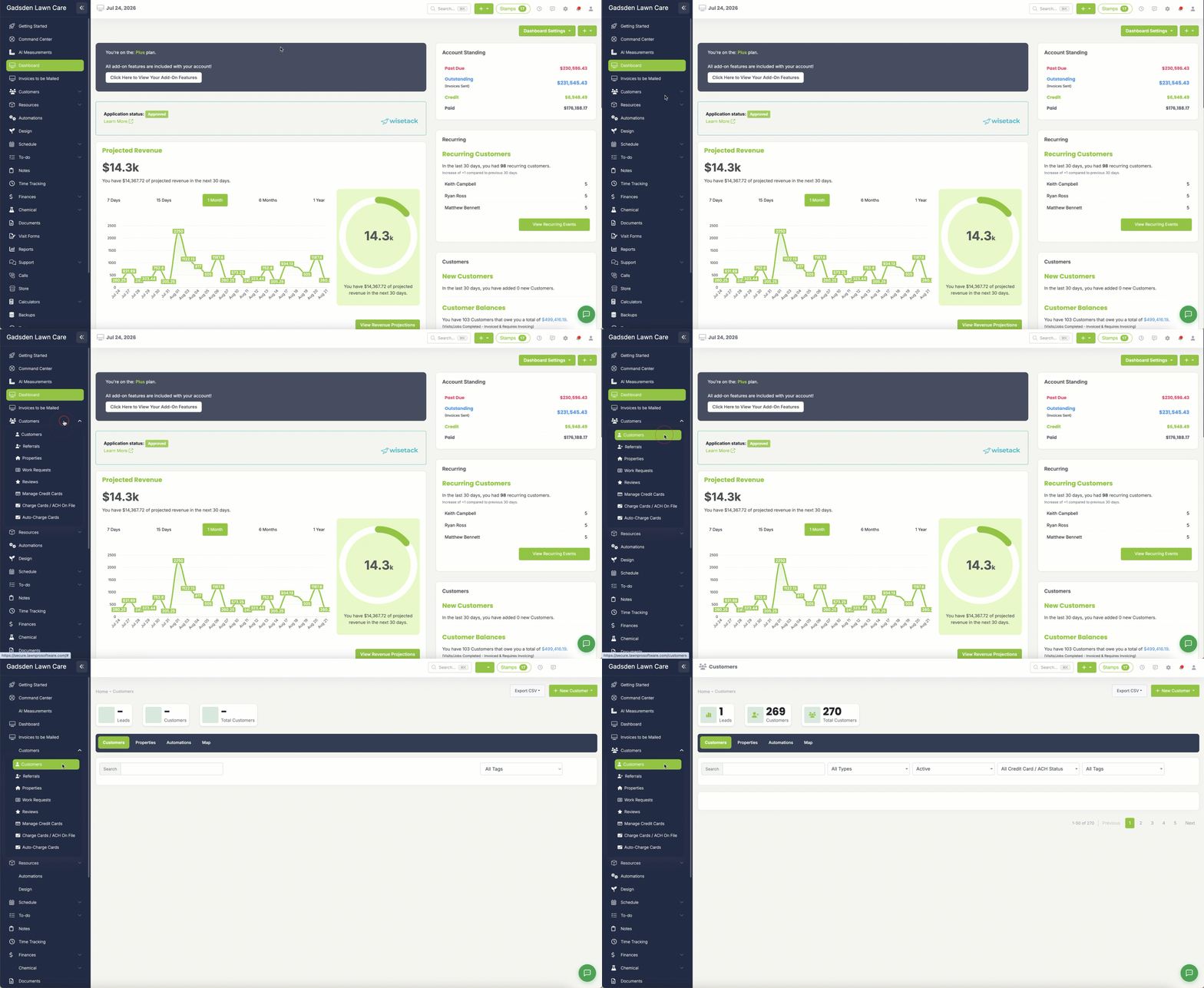
Search for the customer you would like to view the client portal for and click the pencil button to go to their customer profile.
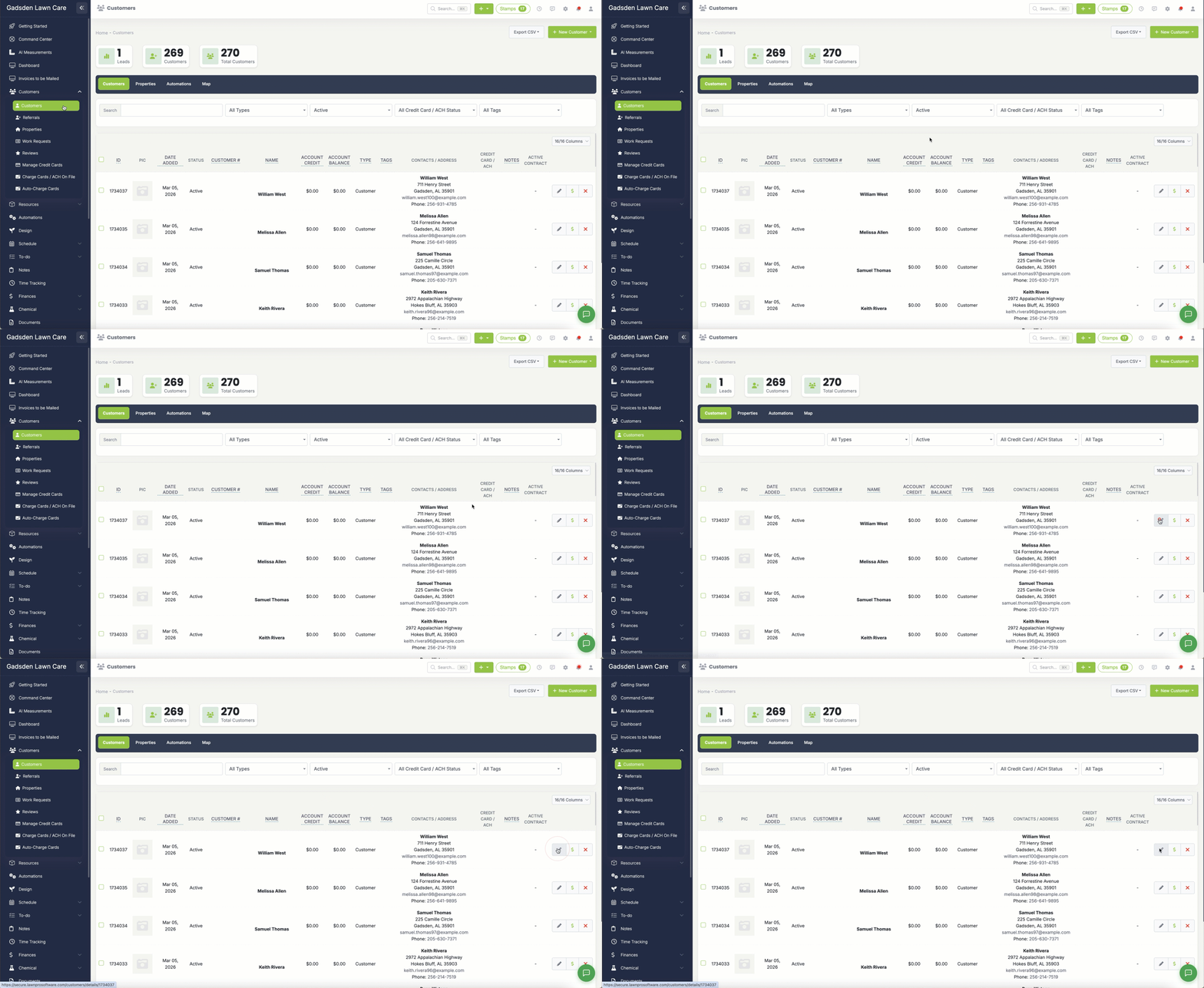
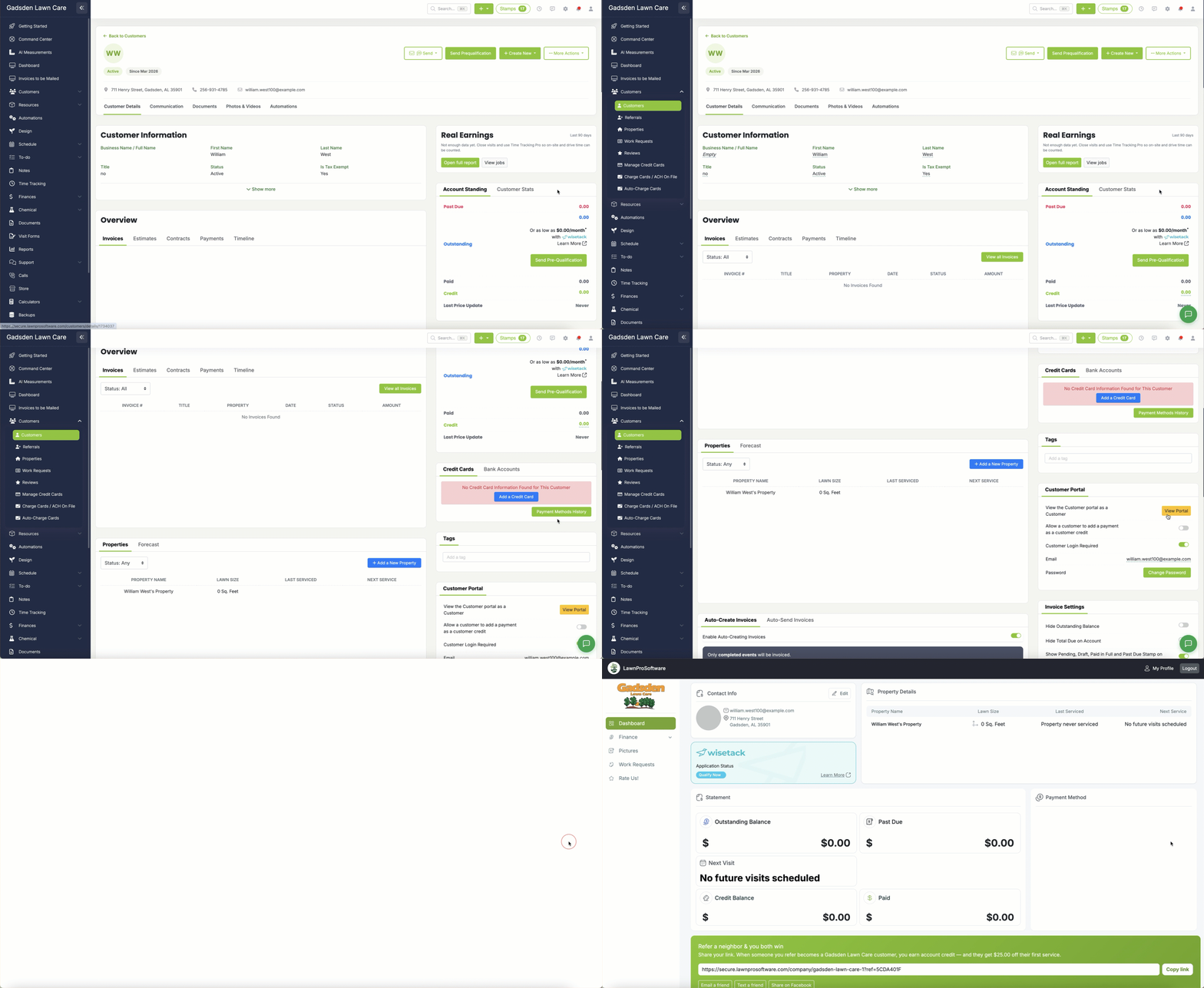
Find the yellow “View Portal” button.
That will take you to the selected customer’s client portal.
Keep reading to learn what your client can do in their portal.
Save Payment Methods on File
Your customer can save a credit card on file and can also connect their bank account for ACH transfers.
They can do both of these things by going to their “Profile“. This can be found on the top right of the screen in their client portal.
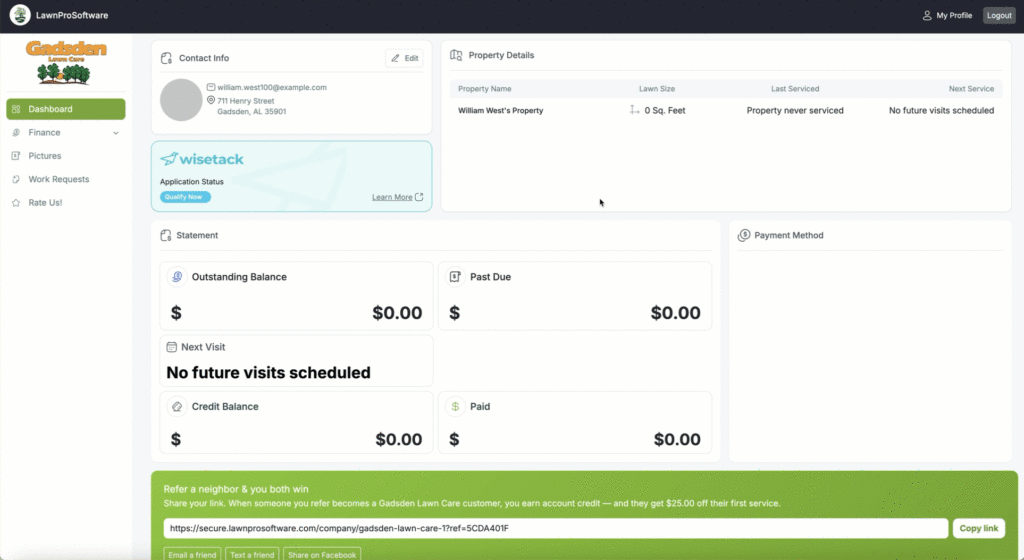
A login must be required for the option to add a card or ACH on file to be available.
Once your client changes the Login Required to yes, the buttons will become active and the client can add a card on file by clicking the blue “Add a Credit Card” button.
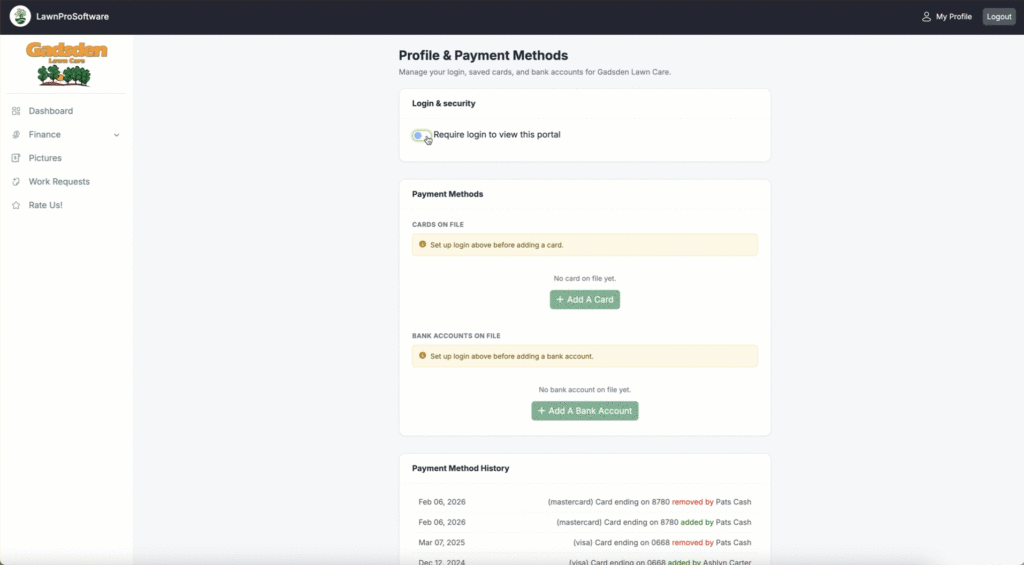
The client can then add a card or ACH on file (if you have ACH enabled on your account)
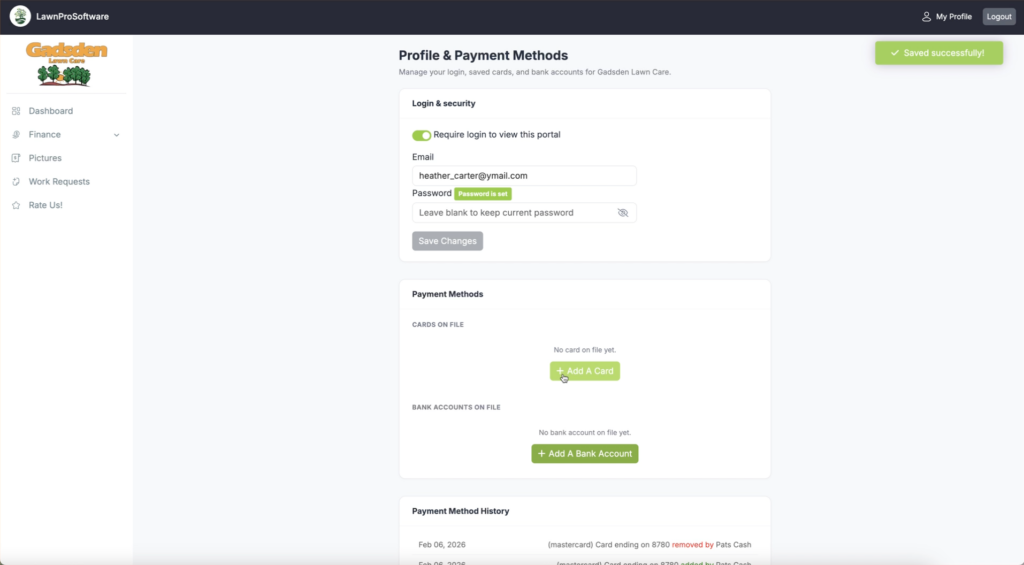
Once they have entered their card information, they will get a popup thats if they want to allow you to charge this card.
If they select yes, they will then have a card on file for you to charge and they will also have the option to select a box that will allow you to auto-charge their account if you have this feature for your account.
Invoices and Estimates
Once you send or mark your invoices and estimates as sent, your client will be able to view them in their portal.
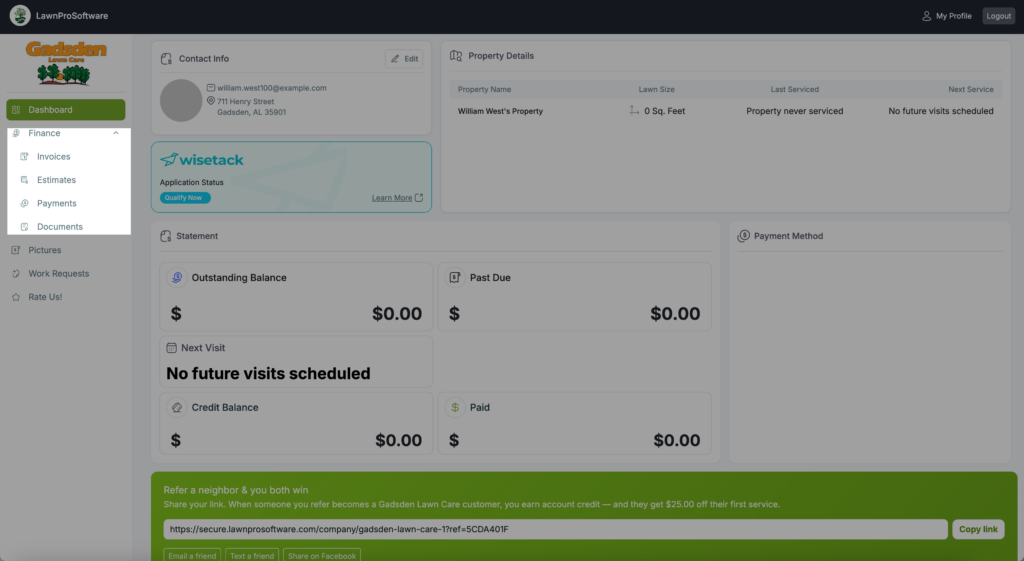
To view invoices, your client will click “Finances” and then select Invoices.
If they are looking for an estimate you have created and sent to them, they will choose “Estimates” from the “Finance” dropdown.
Paying in Client Portal
Clients can pay in the portal is by going to the “Finance” Tab and clicking “Invoices“
They can then select the button for the invoice they are trying to pay.
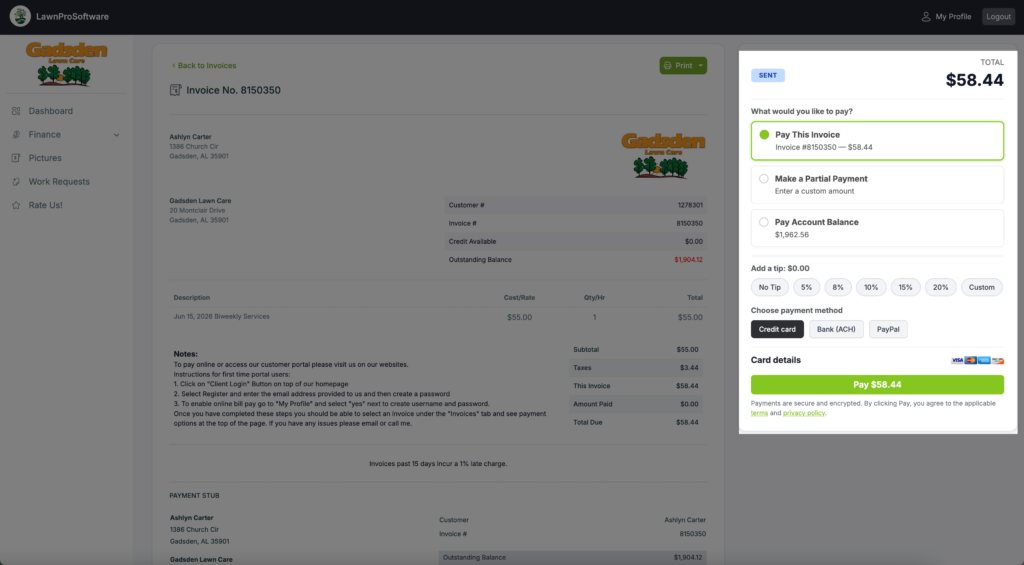
Once they are on the invoice, they will see the payment box at the top right. They can choose to make a full or partial payment, or pay off their account balance. They can also leave a tip and choose their payment method.
Documents and Pictures
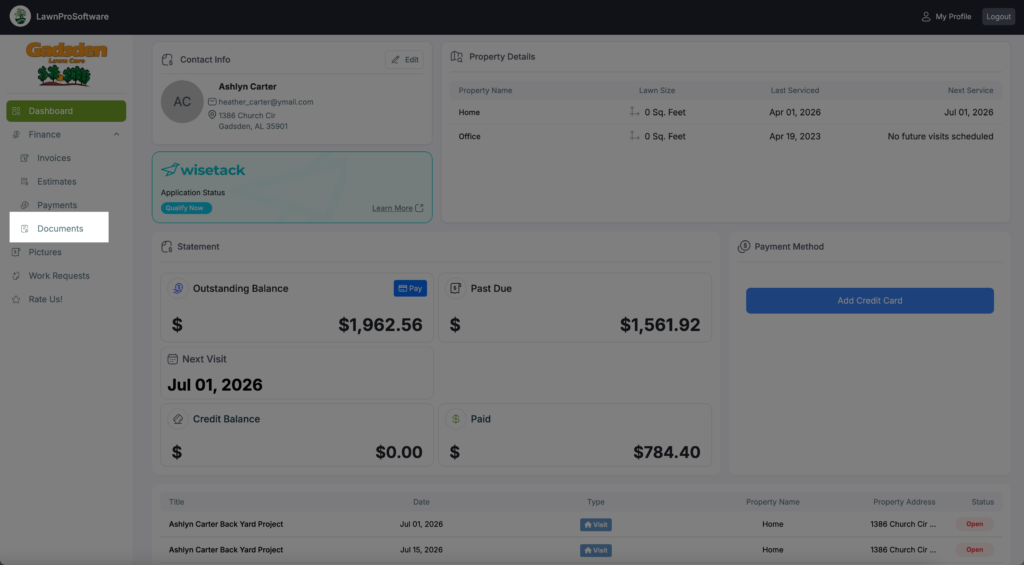
Your customer can also view documents you have sent them while in their portal.
To view documents, they will click the “Finance Tab” and then click “Documents“
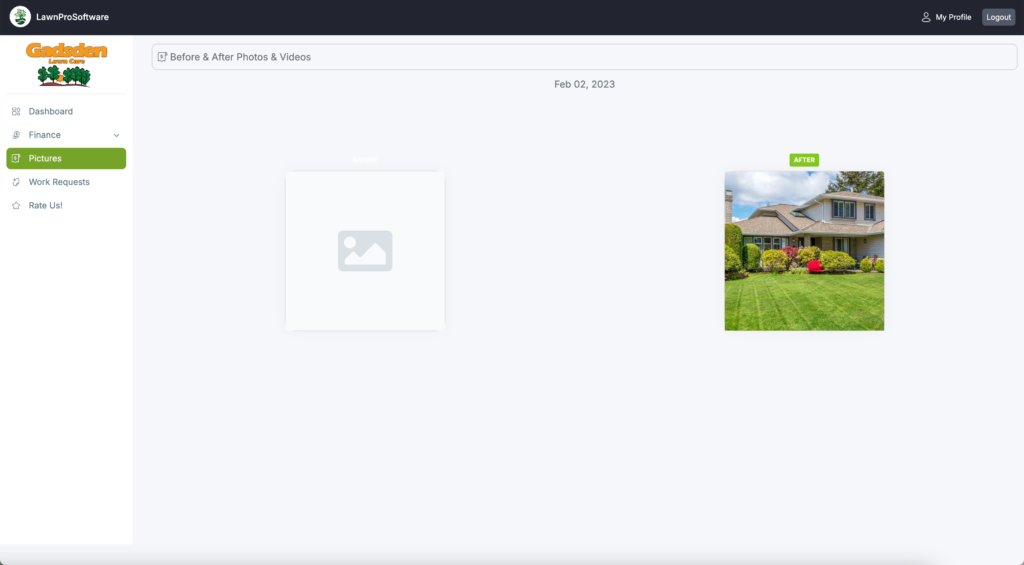
If your clients want to view the before and after pictures you have put on their visits, they can click “Pictures” and see them there on the pictures tab.
Work Requests
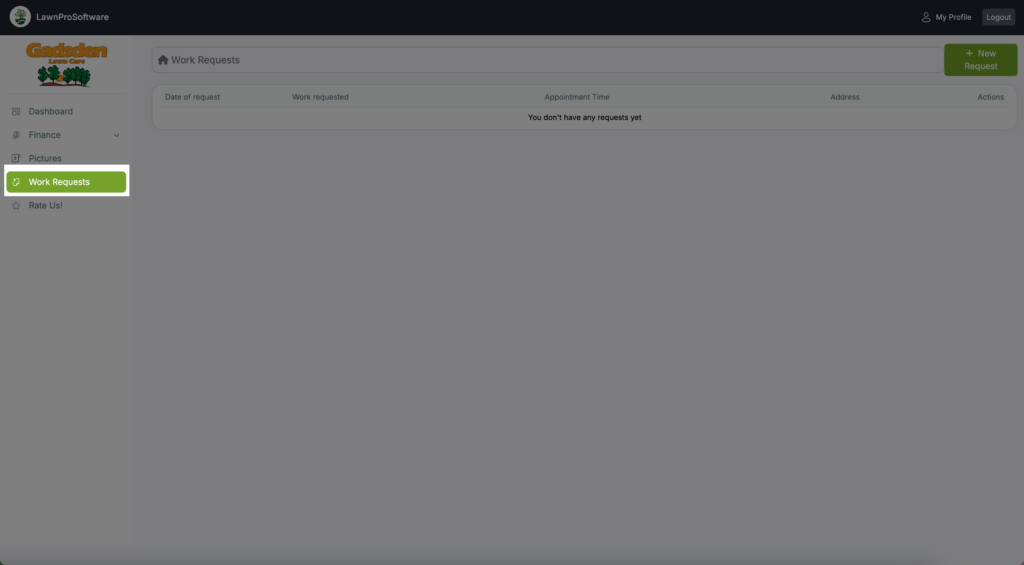
You client can put in work requests in their portal.
To do this, they will click “Work Requests“
Leave a Review
The last thing your customer can leave you a rating and review on the “Rate Us!” page.