Table of Contents
Overview
You can go back and edit an estimate at any time — for example, to update a line item, add a P.O. number, or change the customer’s property.
Opening an Estimate to Edit
There are two ways to get to the edit page:
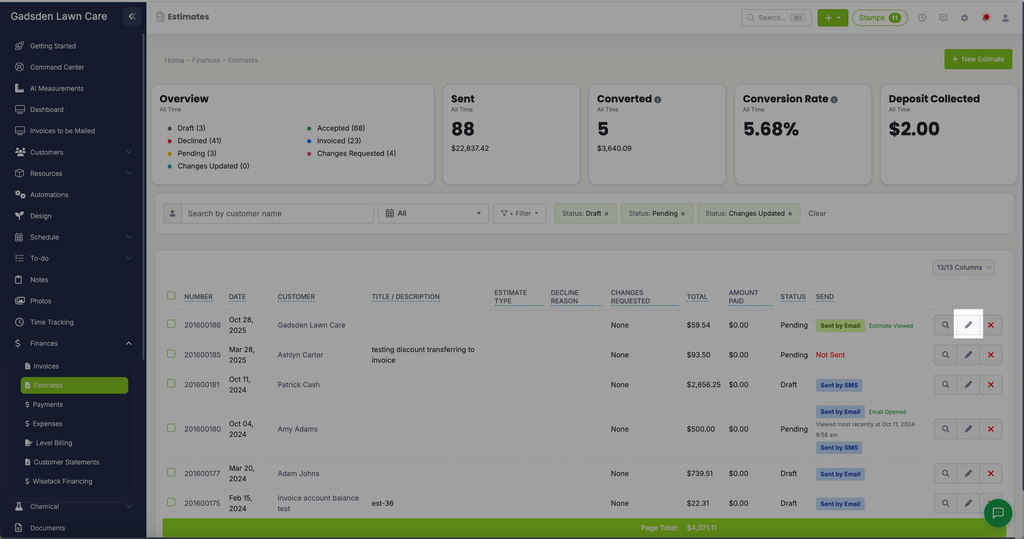
- Go to Finances > Estimates, find the estimate you want to change, and click the pencil icon on the right side of its row.
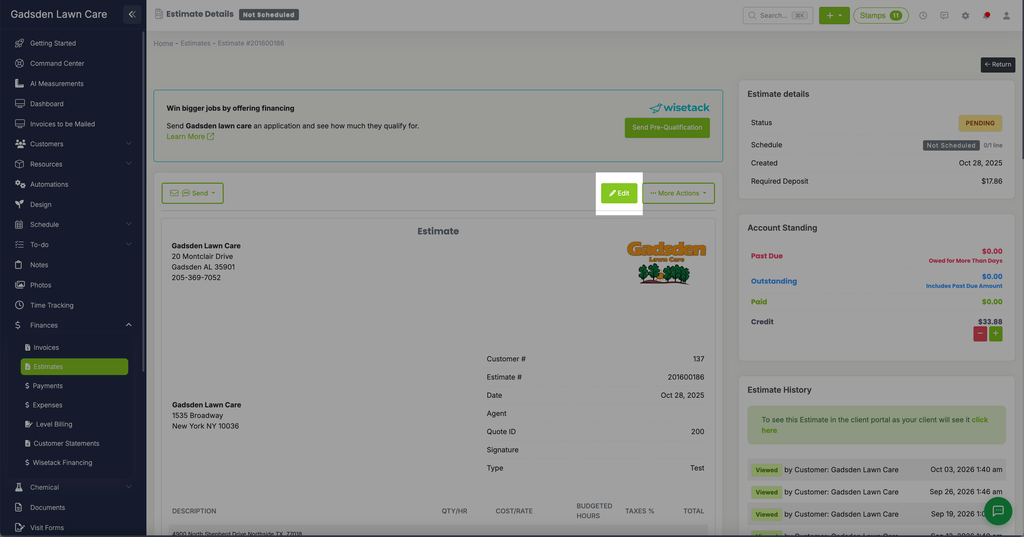
- Or open the estimate’s details page (click its number or the magnifying glass icon from the list), then click the green “Edit” button near the top, next to “Send” and “More Actions.”
This opens the same page used to create a new estimate, with all of the estimate’s existing details filled in. See Create Estimate for what each field and section does. Make your changes and click “Save Estimate” to update it.