Table of Contents
Overview
The Estimates page is where you create, send, and track every estimate for your customers. Go to Finances > Estimates to get there.
Summary Cards
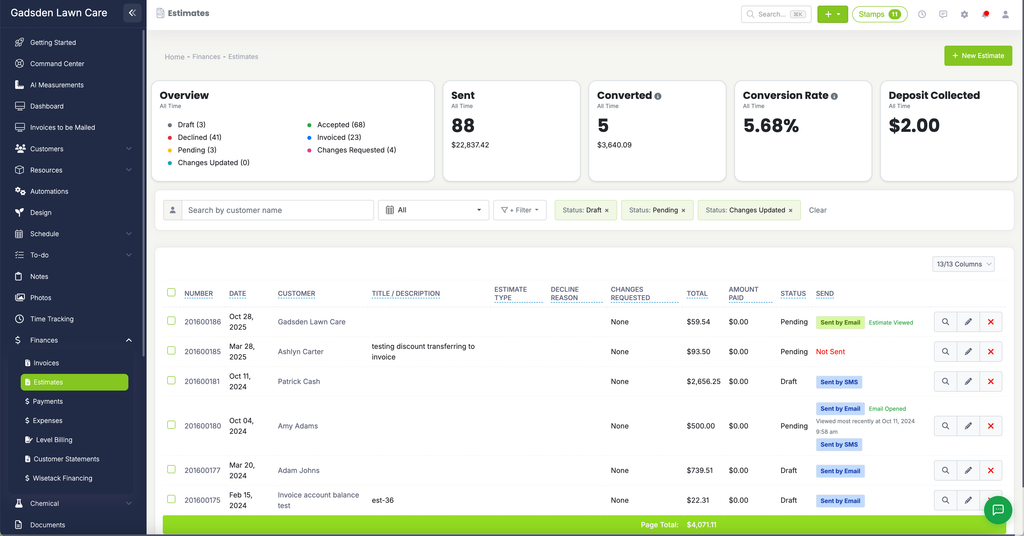
Across the top, five cards show your estimate activity (all for All Time, unless you change the date filter):
- Overview — a breakdown by status: Draft, Declined, Pending, Changes Updated, Accepted, Invoiced, and Changes Requested, each with a count and a colored dot matching its status.
- Sent — the total number of estimates sent, and their combined dollar value.
- Converted — the number of estimates converted (for example, turned into a visit or invoice), and their combined value.
- Conversion Rate — the percentage of sent estimates that converted.
- Deposit Collected — the total deposits collected on estimates.
Search and Filters
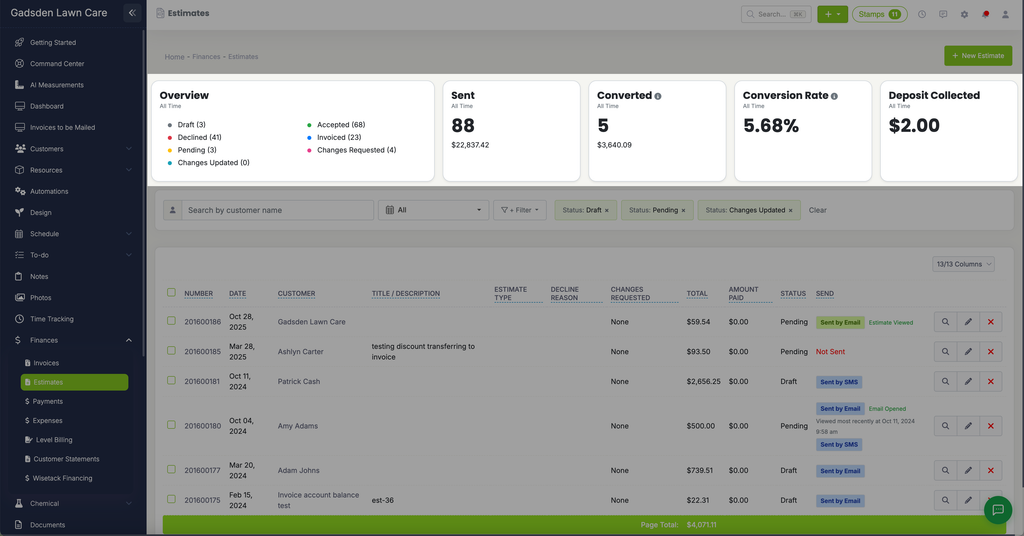
Above the list, you can narrow down what’s shown:
- Search by customer name
- Date range — defaults to “All”
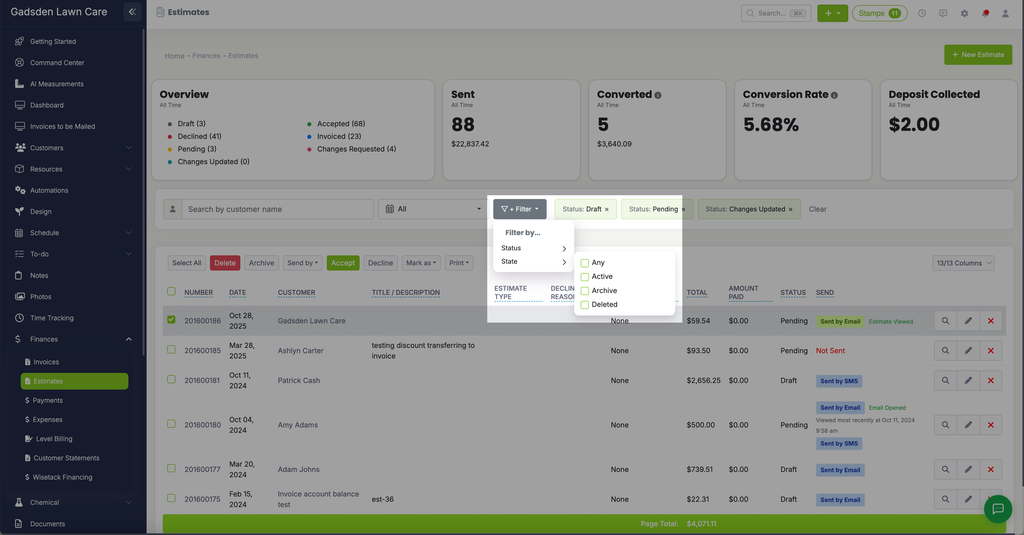
- “+ Filter” — opens a “Filter by…” menu with two options:
- Status — check any combination of Draft, Accepted, Declined, Invoiced, Pending, Changes Requested, and Changes Updated
- State — choose Any, Active, Archive, or Deleted
Active filters show as removable chips next to the Filter button. Click the x on a chip to remove just that filter, or “Clear” to remove them all.
Bulk Actions
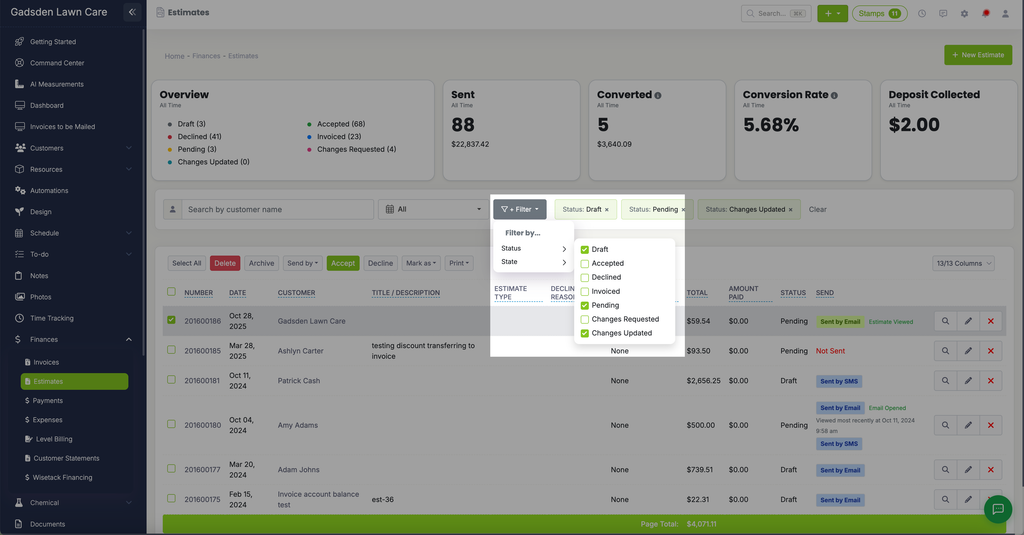
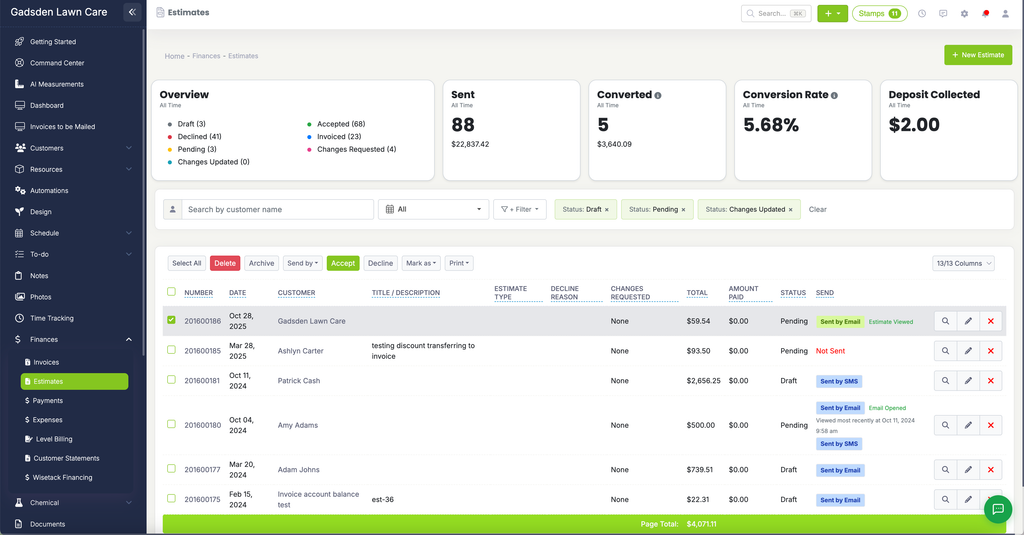
Check the box next to one or more estimates to act on them at once:
- Select All
- Delete
- Archive
- Send by — choose how to send the selected estimates
- Accept
- Decline
- Mark as — change the status of the selected estimates
Click the “13/13 Columns” dropdown on the right to choose which columns are shown.
The Estimates List
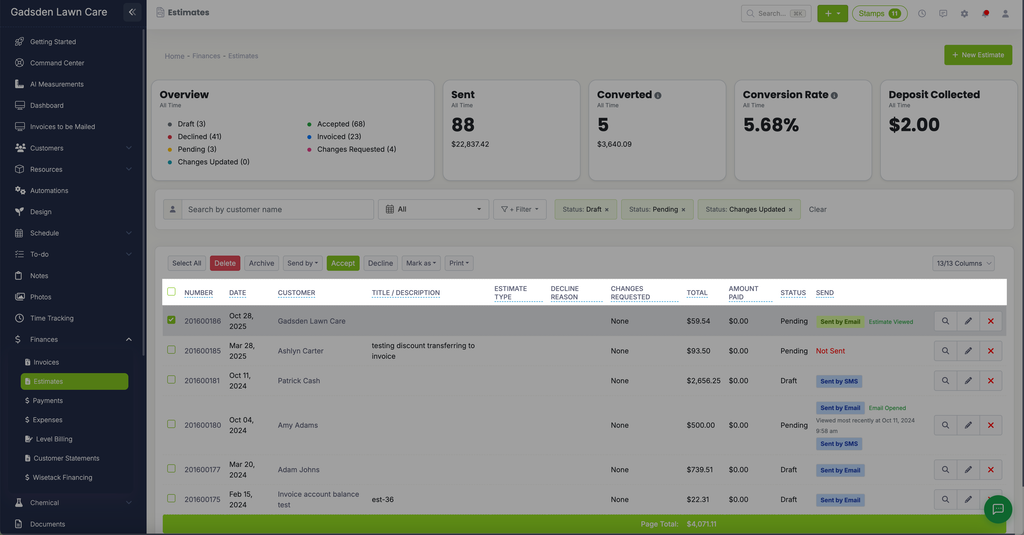
Each estimate in the list shows:
- Number
- Date
- Customer
- Title / Description
- Estimate Type
- Decline Reason (if applicable)
- Total
- Amount Paid
- Status
- Send — shows how the estimate was sent (for example, “Sent by Email” or “Sent by SMS,” or “Not Sent” in red), along with activity like “Estimate Viewed,” “Email Opened,” or when it was most recently viewed
On the right of each row, use the magnifying glass to view the estimate, the pencil to edit it, or the X to delete it.
A green “Page Total” bar at the bottom shows the combined total for the estimates currently shown.
Creating a New Estimate
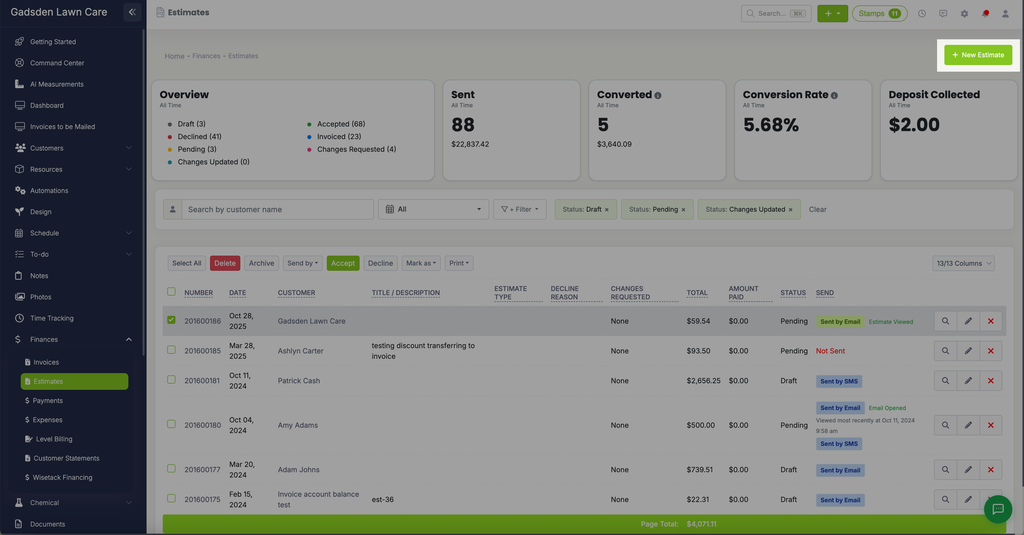
Click the green “+ New Estimate” button in the top right to create a new estimate. See Create Estimate for the full walkthrough.