Table of Contents
- Overview
- Opening Custom Automations for an Estimate
- Turning Automations On or Off
- Available Automations
- Automations Already Completed
Overview
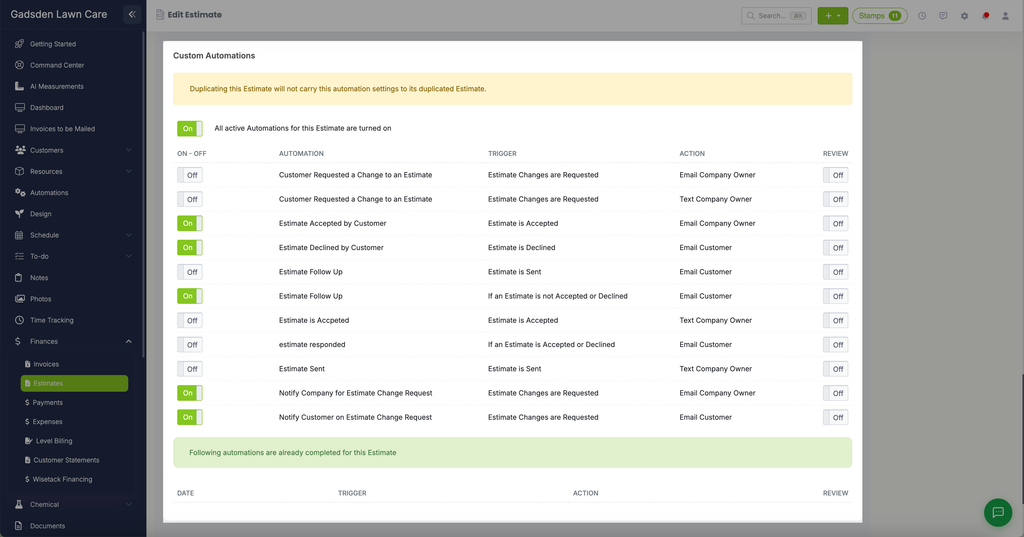
Beyond your account-wide automations, you can turn specific automations on or off for a single estimate. This is useful when you want different notification behavior for one particular estimate without changing your default settings.
Note: Duplicating an estimate does not carry its individual automation settings over to the duplicate.
Opening Custom Automations for an Estimate
Go to Finances > Estimates, find the estimate, and click either icon on its row:
- The pencil icon opens the estimate for editing, with Custom Automations as a section on the page.
- The magnifying glass icon opens the estimate’s details, with Custom Automations available there as well.
Turning Automations On or Off
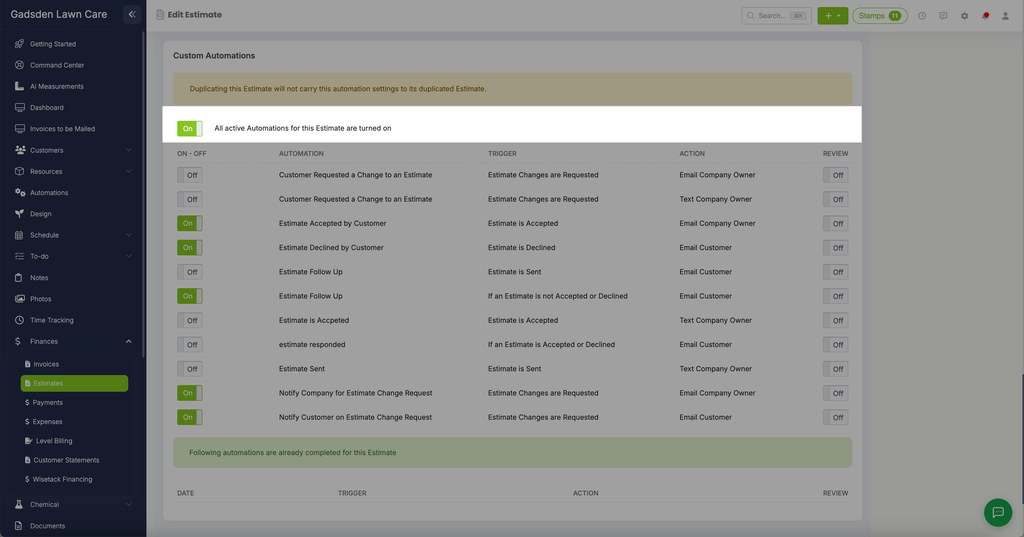
At the top of the panel, a master toggle shows “All active Automations for this Estimate are turned on” (or off). Below that, each automation has its own ON-OFF toggle and a separate REVIEW toggle, so you can control automations individually instead of all at once.
Available Automations
Each row shows the automation’s name, its Trigger, and its Action. The automations available are:
| Automation | Trigger | Action |
|---|---|---|
| Customer Requested a Change to an Estimate | Estimate Changes are Requested | Email Company Owner |
| Customer Requested a Change to an Estimate | Estimate Changes are Requested | Text Company Owner |
| Estimate Accepted by Customer | Estimate is Accepted | Email Company Owner |
| Estimate Declined by Customer | Estimate is Declined | Email Customer |
| Estimate Follow Up | Estimate is Sent | Email Customer |
| Estimate Follow Up | If an Estimate is not Accepted or Declined | Email Customer |
| Estimate is Accepted | Estimate is Accepted | Text Company Owner |
| Estimate Responded | If an Estimate is Accepted or Declined | Email Customer |
| Estimate Sent | Estimate is Sent | Text Company Owner |
| Notify Company for Estimate Change Request | Estimate Changes are Requested | Email Company Owner |
| Notify Customer on Estimate Change Request | Estimate Changes are Requested | Email Customer |
Automations Already Completed
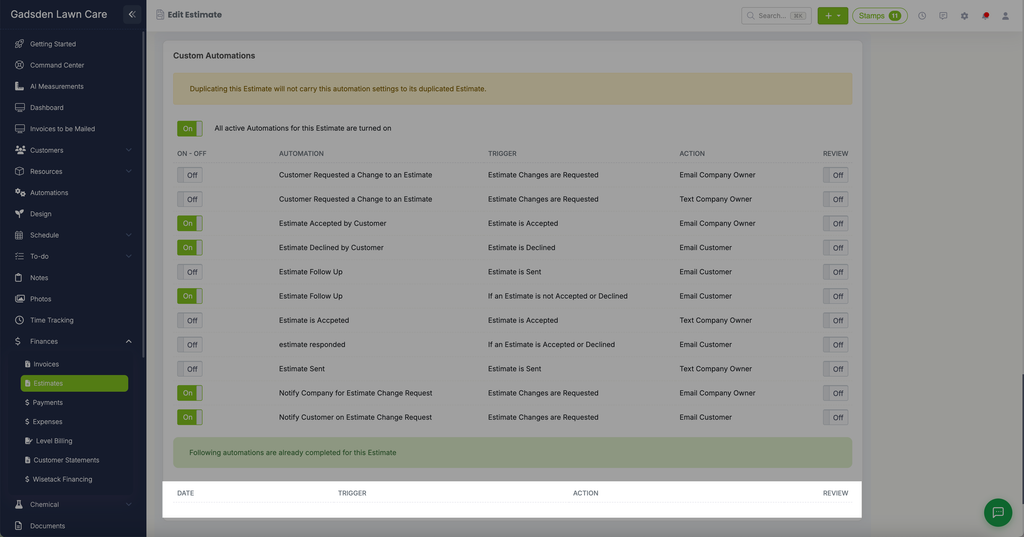
Below the automation list, a “Following automations are already completed for this Estimate” section shows a history of which automations have already fired for this specific estimate, with their Date, Trigger, Action, and Review.