Overview
LawnPro now includes intelligent price tracking that makes it safe and easy to update prices across multiple properties and visits at once. When you change a price in your master catalog, you can now see exactly which properties and visits will be affected and choose what to update.
How It Works
LawnPro automatically tracks the origin of every price:
- Catalog Price: The price matches your master Items & Services catalog
- Custom Price: The price was manually adjusted for this specific property or visit
This means when you do a bulk update, you can confidently update all catalog-priced items while leaving custom prices untouched.
Using Bulk Price Update
Bulk Price Update for Items & Services
If you need to update pricing across your account, LawnPro gives you two ways to do it quickly without having to edit each item or invoice one by one.
Update the Price of a Single Item or Service Everywhere
If you have changed the price of a specific item or service and want that new price to apply everywhere it is currently being used — including existing estimates, invoices, and recurring visits — you can update it in one step. Select the item or service you want to update, enter the new price, and LawnPro will apply it everywhere that item or service appears across your account.
Bulk Increase or Decrease All Item and Service Prices
If you need to raise or lower your prices across the board — for example, at the start of a new season — you can update all of your items and services at once. Choose whether you want to increase or decrease by a percentage or a flat dollar amount, and LawnPro will apply the change to your entire price list at once.
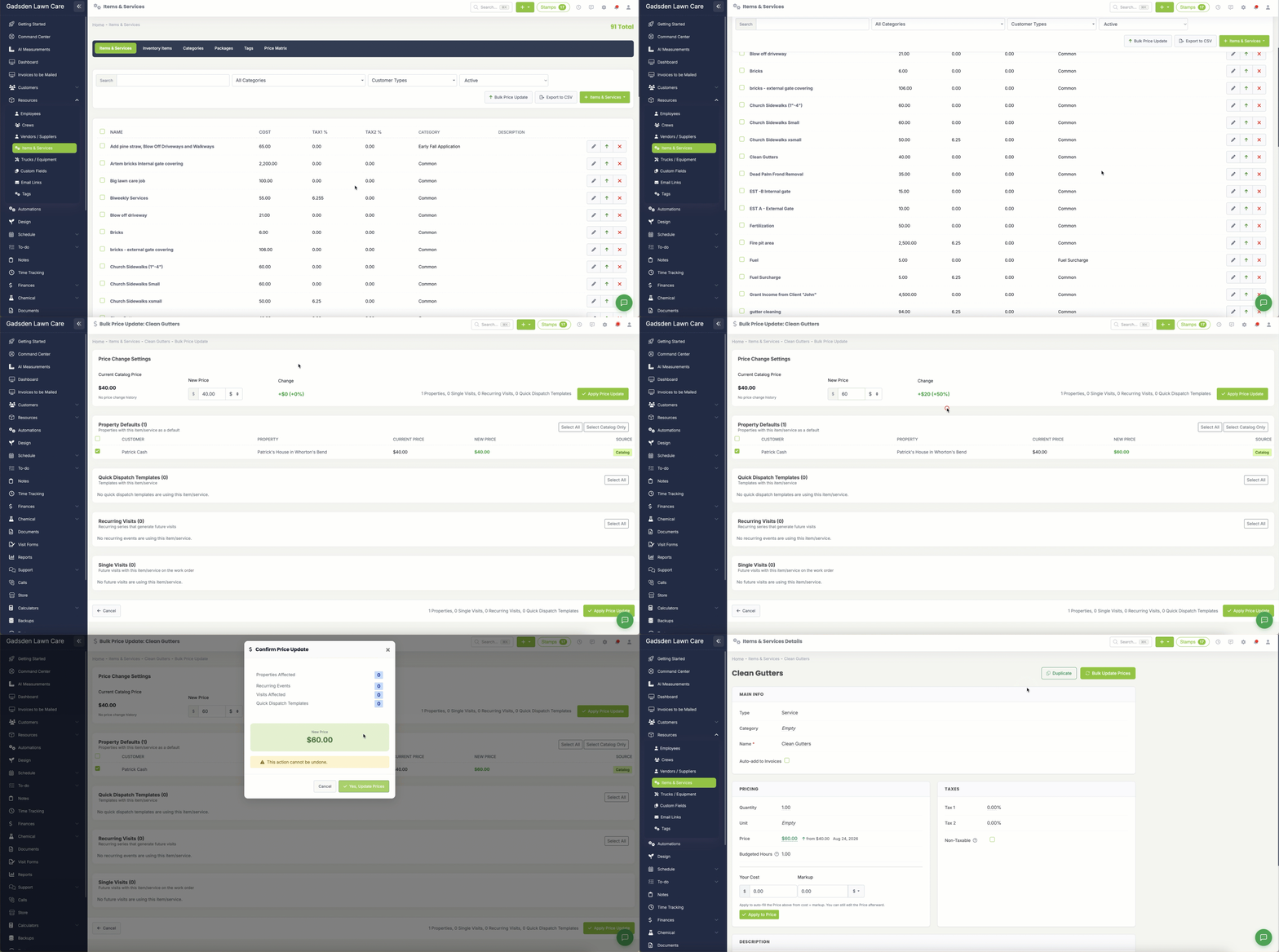
To update the price of a single item or service everywhere:
- Go to Resources > Items & Services
- Click on the item or service you want to update
- Click the Bulk Update Prices button
- Enter the new price
- Review the list of affected properties and visits
- Select or deselect individual items as needed
- Click Apply Changes
Bulk Increase or Decrease All Item and Service Prices
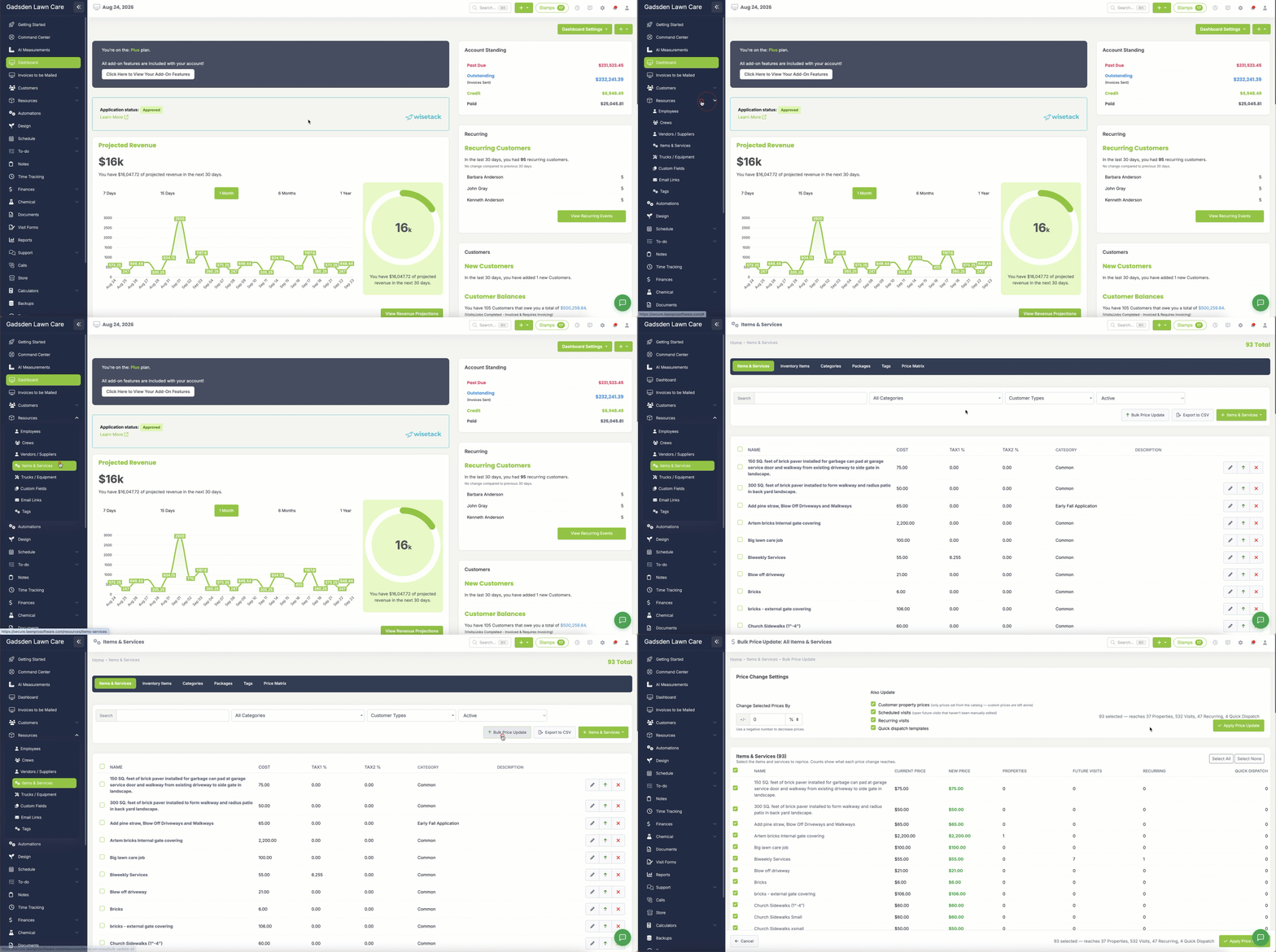
- Go to Resources > Items & Services
- Click the Bulk Price Update button.
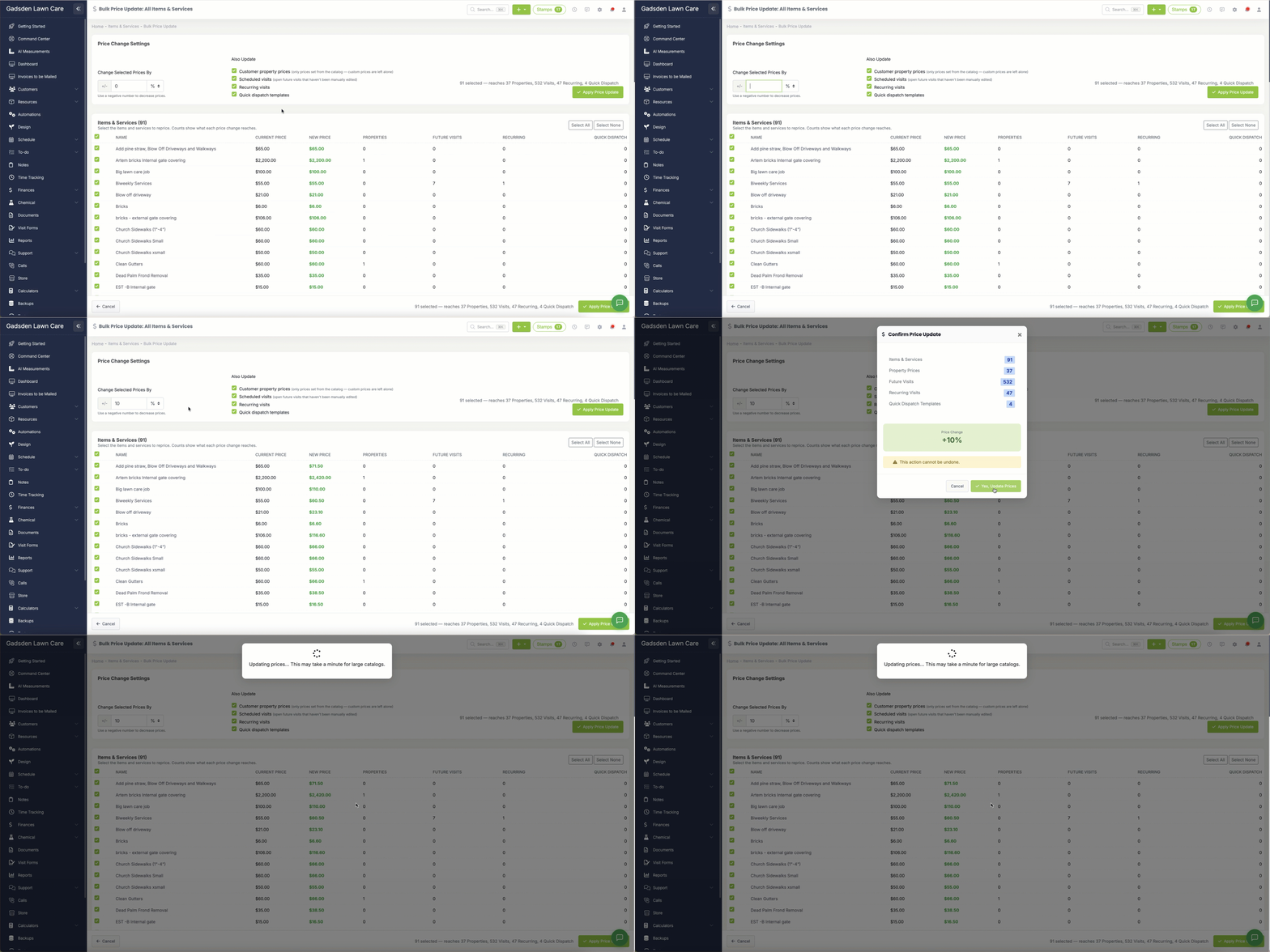
- Enter price increase or decrease and choose percentage or dollar amount.
- Review the list of affected properties and visits
- Select or deselect individual items as needed
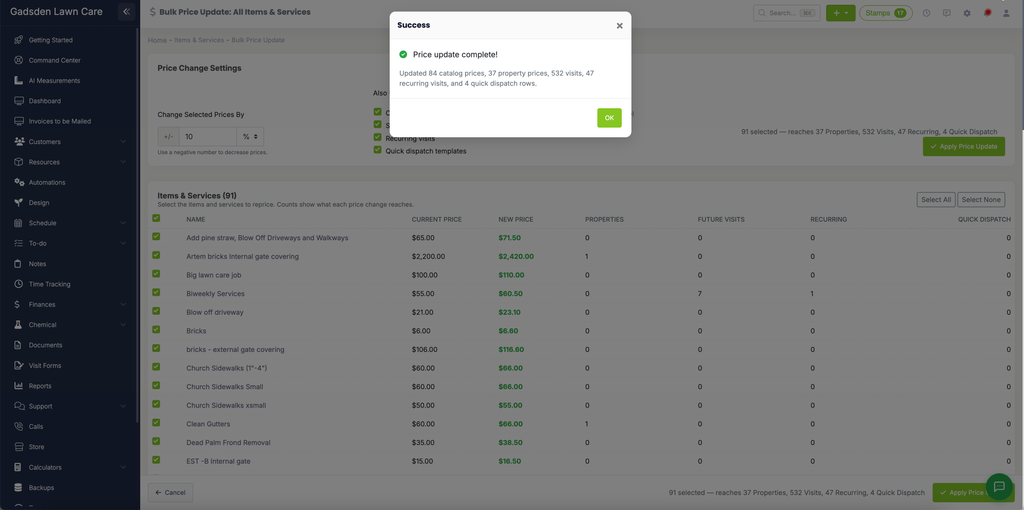
- Click Apply Changes
What Gets Updated
Properties: The default price for this service on each property. This affects future visits created for that property.
Visits: Open (not yet invoiced) visits scheduled for the future. Completed or invoiced visits are never modified.
Understanding Price Sources
In the bulk update preview, you’ll see a “Source” column:
- Catalog – Safe to update. This price came directly from your catalog.
- Custom – Manually adjusted. These are shown but not selected by default to prevent accidentally overwriting intentional price adjustments.
Tips:
- You can include custom-priced items by checking the “Include custom-priced” option, but review them carefully before applying.
- Use the preview to verify changes before applying. The system shows you exactly what the old and new prices will be.
- Historical data (properties and visits created before this feature) may show as “Unknown” source. These should be reviewed individually.
Frequently Asked Questions
Will this change prices on invoices that are already sent?
No. Only open, future visits can be updated. Completed visits and invoices are never modified.
What if I gave a customer a special price?
Custom prices are protected by default. They appear in the preview but are not selected for update unless you specifically choose to include them.
Can I undo a bulk update?
There is no automatic undo, so please review the preview carefully before applying. If you need to revert, you would need to manually adjust prices or perform another bulk update.