Table of Contents
- Overview
- Opening Multi-Step Program Templates
- Naming the Template
- Adding Steps to the Template
- Saving the Template
- Finding and Managing Existing Templates
Overview
Multi-step programs are for situations where you perform a different service each visit, and the time between visits may vary — a fertilization program is a good example. Instead of setting this up manually for every customer, you can build a reusable multi-step template once and use it again and again.
Opening Multi-Step Program Templates
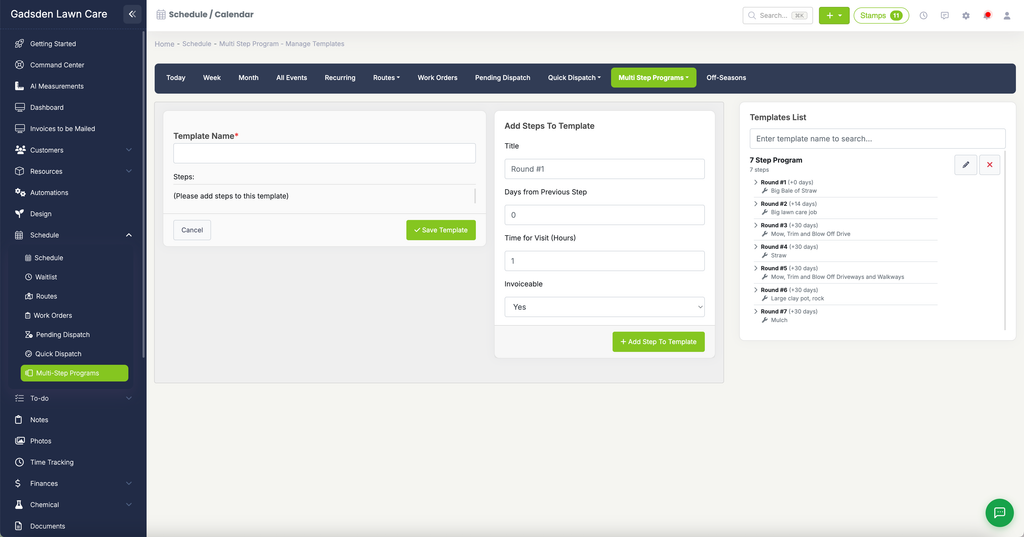
Click the Schedule tab, then click Multi Step Programs > Templates.
Naming the Template
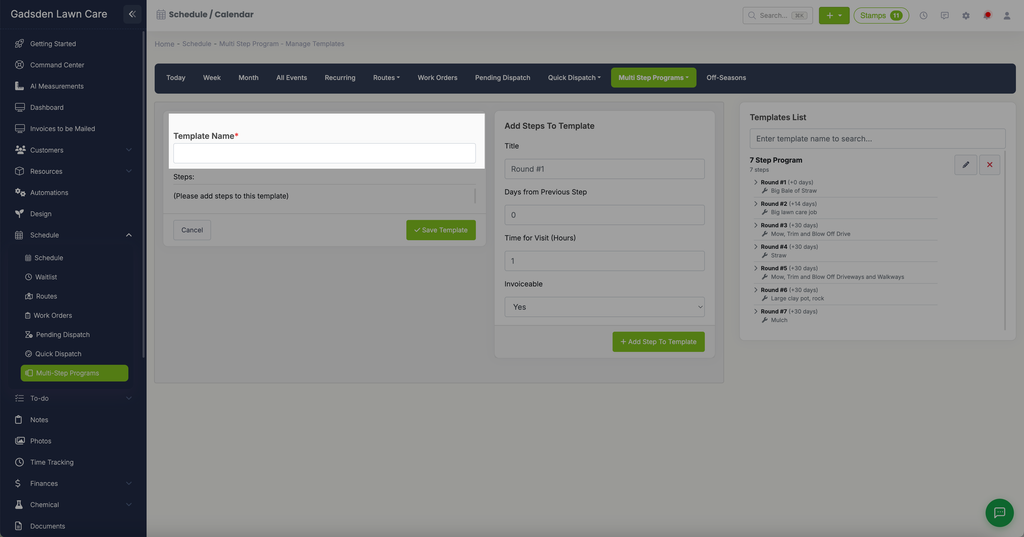
In the “Template Name” field, enter a name for your multi-step program.
Adding Steps to the Template
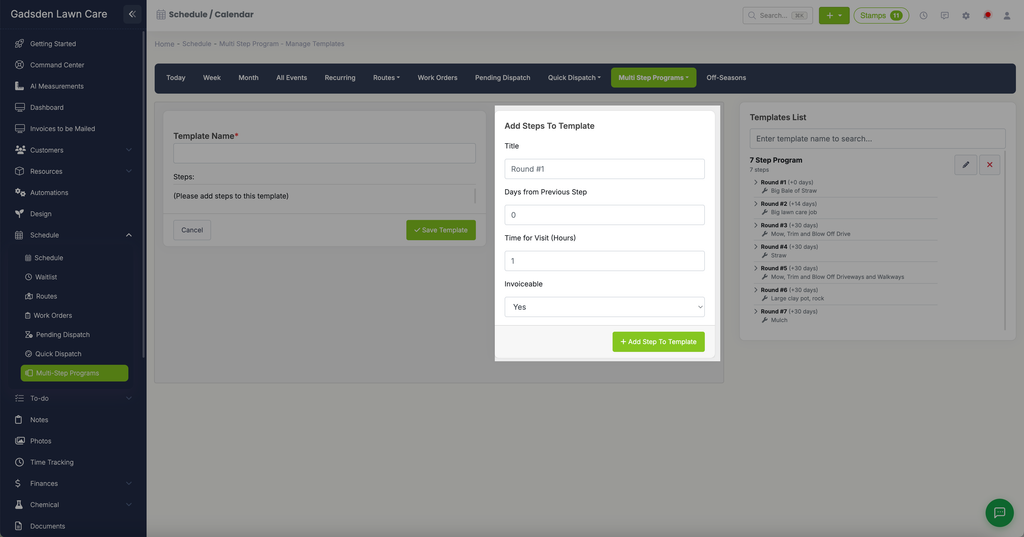
Use the “Add Steps To Template” panel to build out each visit in the program:
- Title — a name for this step, for example “Round #1”
- Days from Previous Step — how many days after the previous step this visit should occur (0 for the first step)
- Time for Visit (Hours) — the budgeted time for the visit
- Invoiceable — Yes or No
Click “+ Add Step To Template” to add it to the Steps list on the left, then repeat for each additional step in the program.
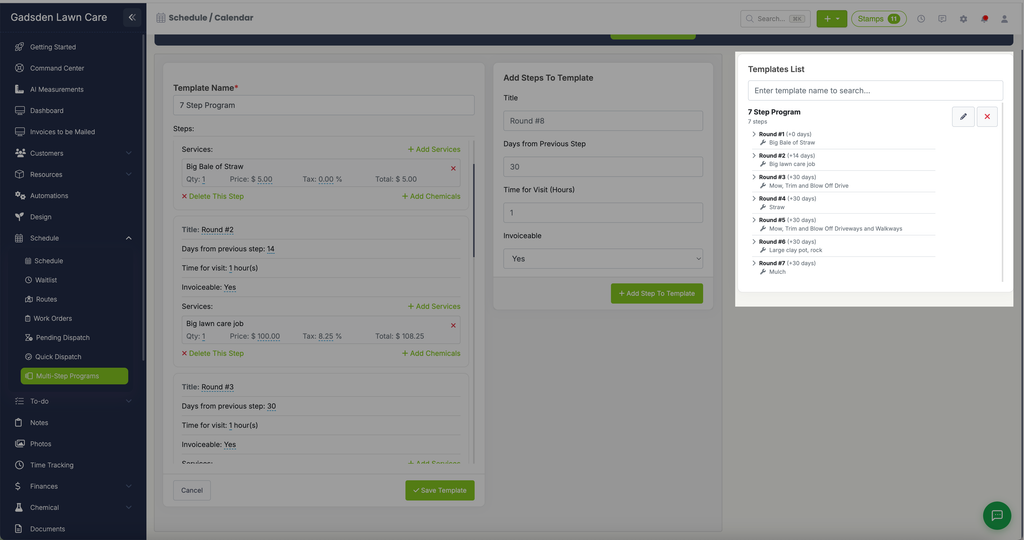
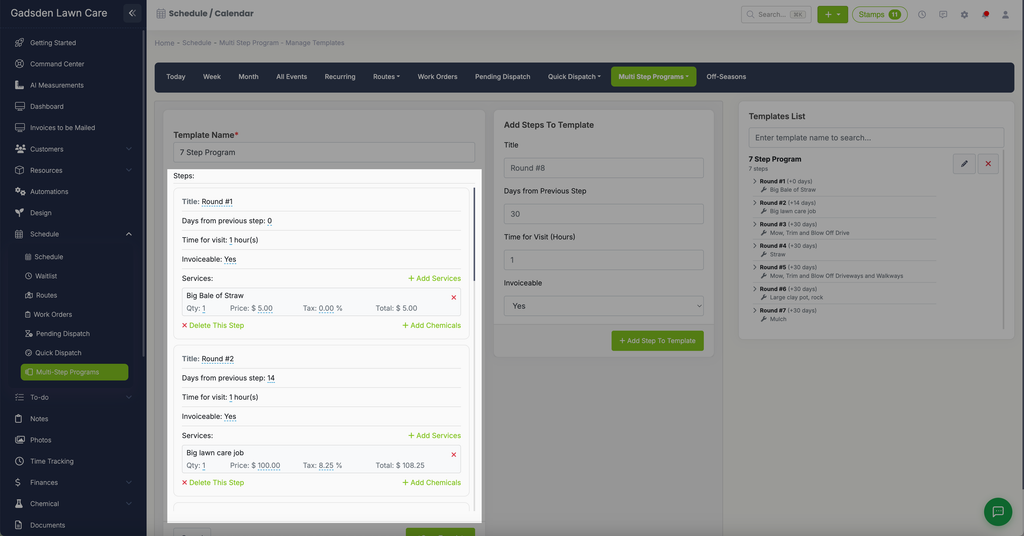
Each step you add appears as its own card in the Steps list, showing the Title, Days from previous step, Time for visit, and Invoiceable settings you just entered. From this card you can also:
- Click “+ Add Services” to add items/services to this step — each one shows Qty, Price, Tax, and Total, with a red X to remove it. A step with none shows “(No Services)”.
- Click “+ Add Chemicals” to add chemicals to this step.
- Click “✕ Delete This Step” to remove the step entirely.
Saving the Template
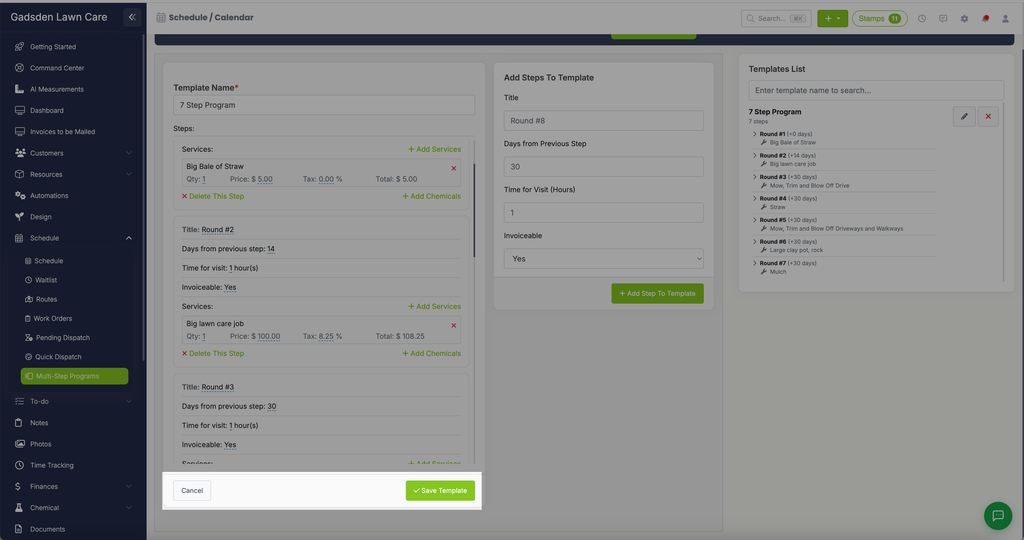
Once all your steps are added, click the green “Save Template” button, or “Cancel” to back out without saving.
Finding and Managing Existing Templates
The “Templates List” panel on the right shows your saved templates, along with their step count. Click the arrow next to a template to expand it and see each step, along with the day offset and the service for that step (for example, “Round #2 (+14 days) — Big lawn care job”). Search by name, click the pencil icon to edit a template, or the red X to delete it.