Table of Contents
- Overview
- Filters
- Recurring Series List Columns
- Infinite Visits
- Bulk Actions
- Individual Series Actions
Overview
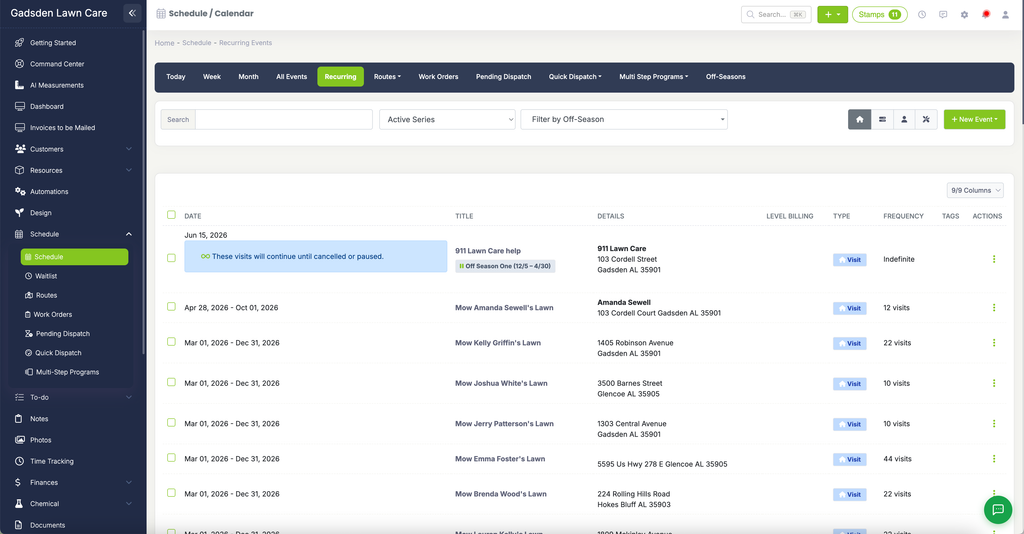
The Recurring Events page gives you a complete list of all your recurring visit series in one place. This is where you can view, manage, and make bulk changes to your recurring schedules.
To access it, go to Schedule > Recurring.
Filters
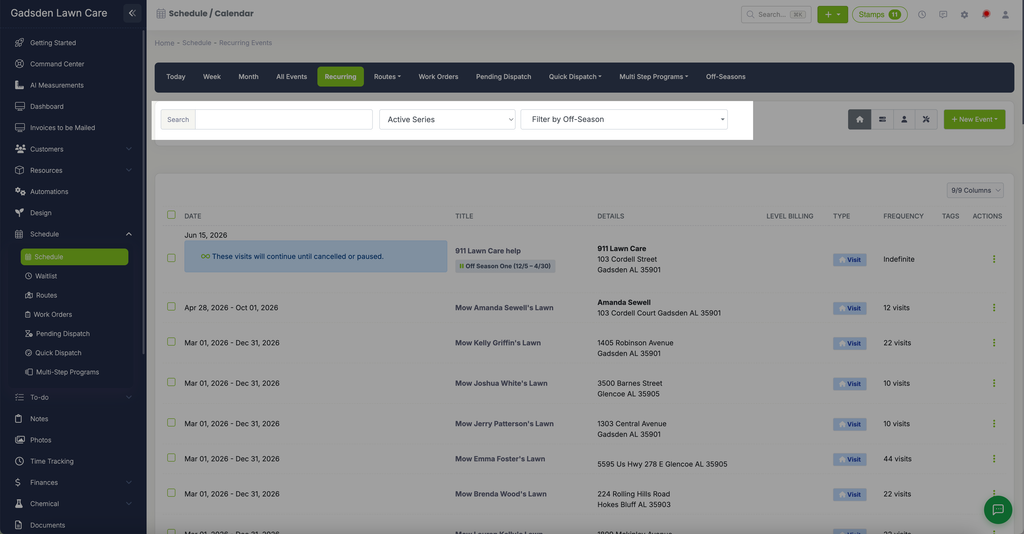
At the top of the page you can filter your recurring series:
- Search — search for a specific recurring series by name or customer
- Active Series — filter by Active, Inactive, or All series
- Filter by Off-Season — filter by a specific off-season you have set up
Recurring Series List Columns
Each recurring series in the list shows:
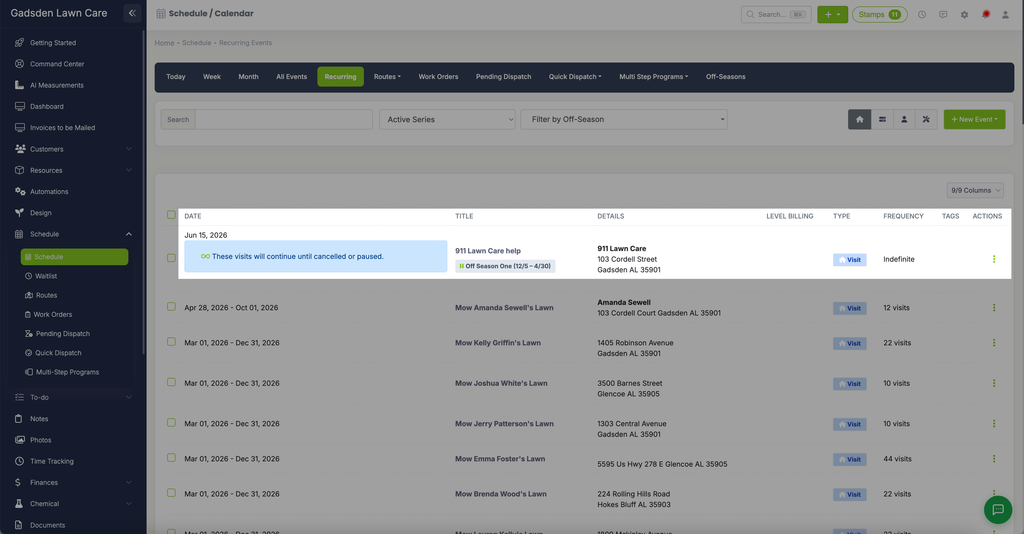
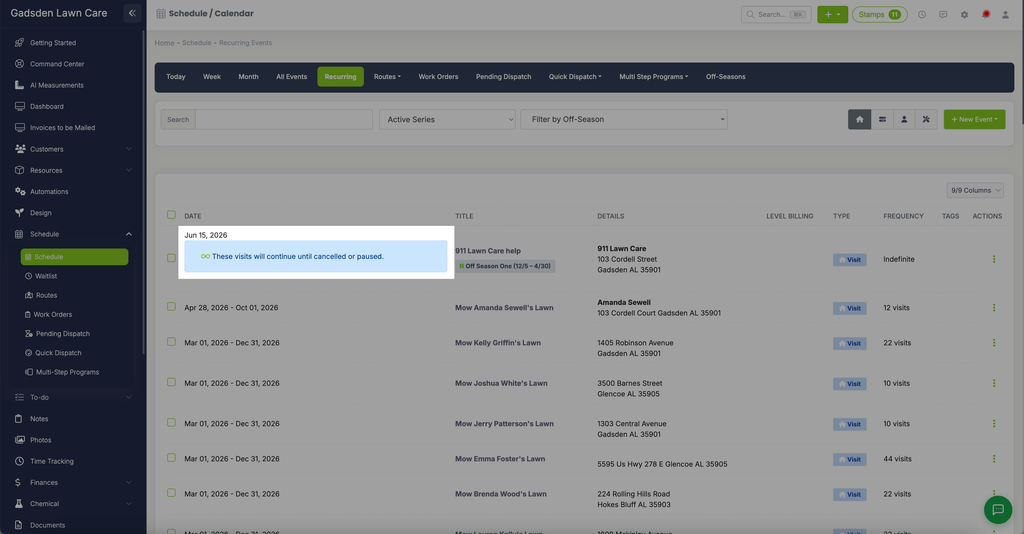
- Date — the start and end date of the recurring series. Infinite series show their start date with a note that visits will continue until cancelled or paused.
- Title — the name of the recurring series
- Details — the customer name and property address
- Level Billing — if the series is tied to a level billing contract, it shows here
- Type — the event type, such as Visit
- Frequency — the total number of visits in the series, or Indefinite for infinite series
- Tags — any tags assigned to the series
If a series has an off-season applied, its name and date range show as a small label under the series title (for example, “Off Season One (12/5 – 4/30)”).
Infinite Visits
Recurring series set up as infinite visits show a blue banner that says “These visits will continue until cancelled or paused.” These series do not have an end date and will keep generating visits automatically.
Note: You will only see these visits scheduled for a year out, and then the system keeps adding more.
Bulk Actions
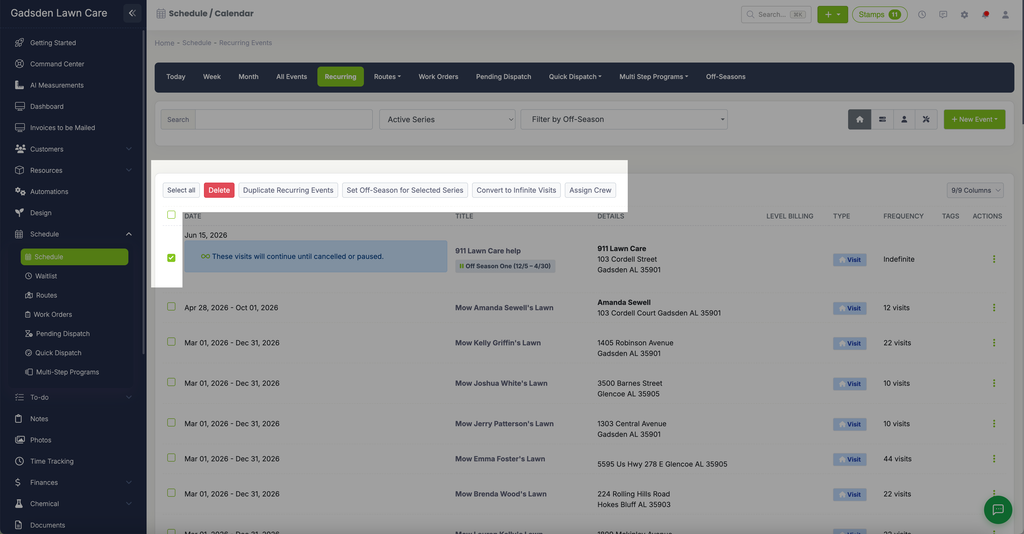
Check the box next to one or more recurring series, and a toolbar appears at the top of the list:
- Select all — selects every series in the list
- Delete — delete all selected recurring series
- Duplicate Recurring Events — create a copy of the selected recurring series
- Set Off-Season for Selected Series — apply an off-season pause to the selected series
- Convert to Infinite Visits — convert the selected series to infinite visits so they continue until cancelled or paused
- Assign Crew — assign a crew to all selected recurring series at once
Individual Series Actions
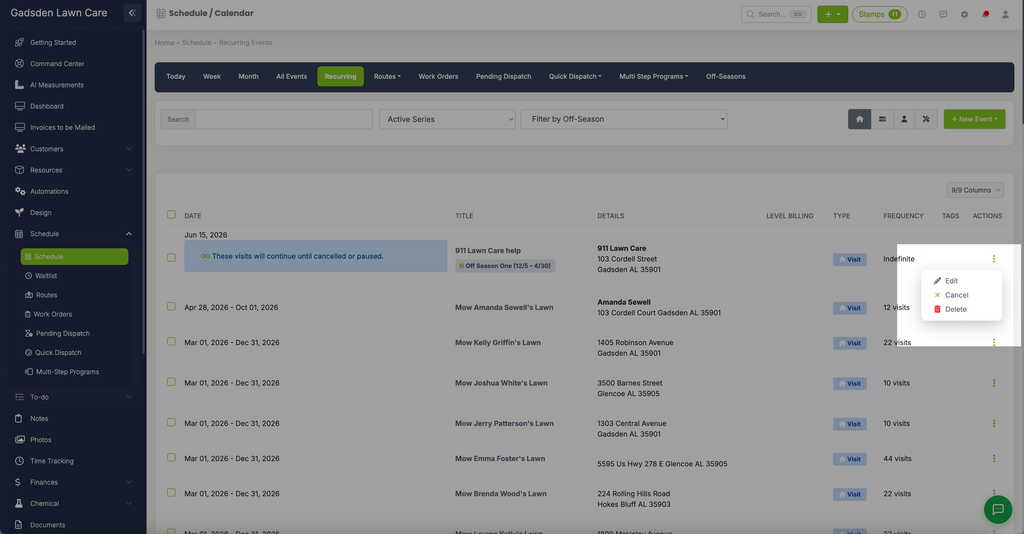
Click the three-dot Actions menu on the right side of any series for:
- Edit — edit the series
- Cancel — cancel the series
- Delete — delete the series