Table of Contents
- Overview
- Dragging Visits Directly on the Calendar
- Opening the Daily Events List
- Reordering Visits
- Recurring Visits and Start Times
- Bulk Actions from the Daily Events List
Overview
If you want to change the order your crew visits properties on a given day, you can reorder them directly from your calendar.
Dragging Visits Directly on the Calendar
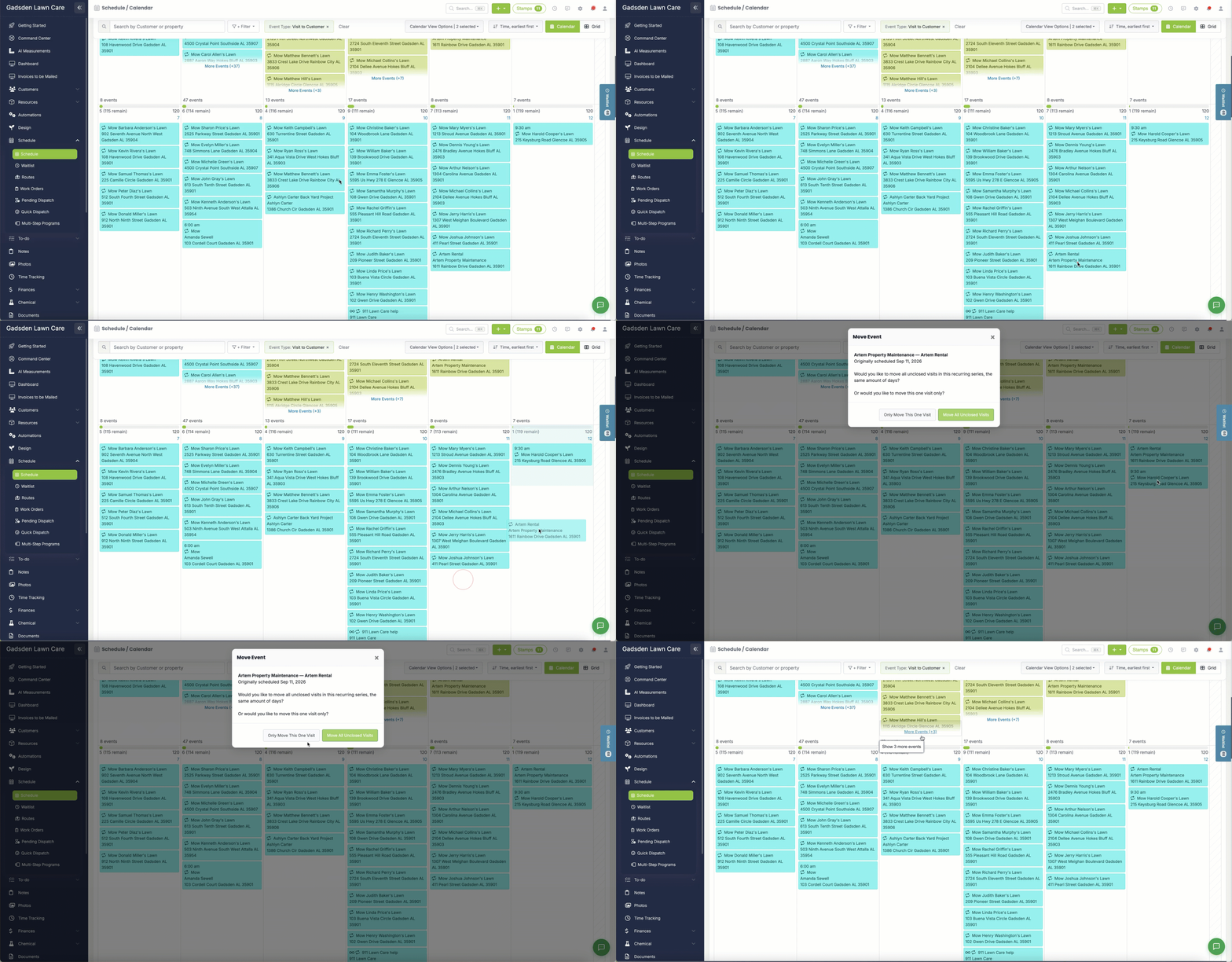
You can also reorder visits without opening a popup at all. On the Month calendar, click and drag a visit up or down within the same day to move it relative to the other visits on that day.
If the visit is part of a recurring series, dragging it brings up the same Move Event popup covered in Moving a Single Visit to a Different Day, asking whether to move just that visit or the rest of the series along with it.
Opening the Daily Events List
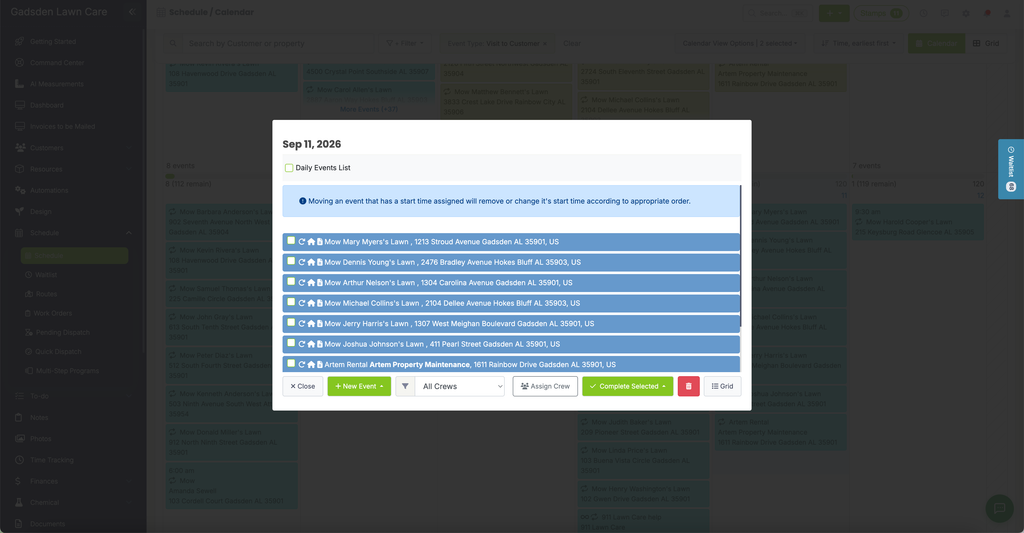
Go to the Schedule tab. On the Month calendar, click the empty space above the first visit on the day you want to reorder. This opens the Daily Events List popup for that date.
Reordering Visits
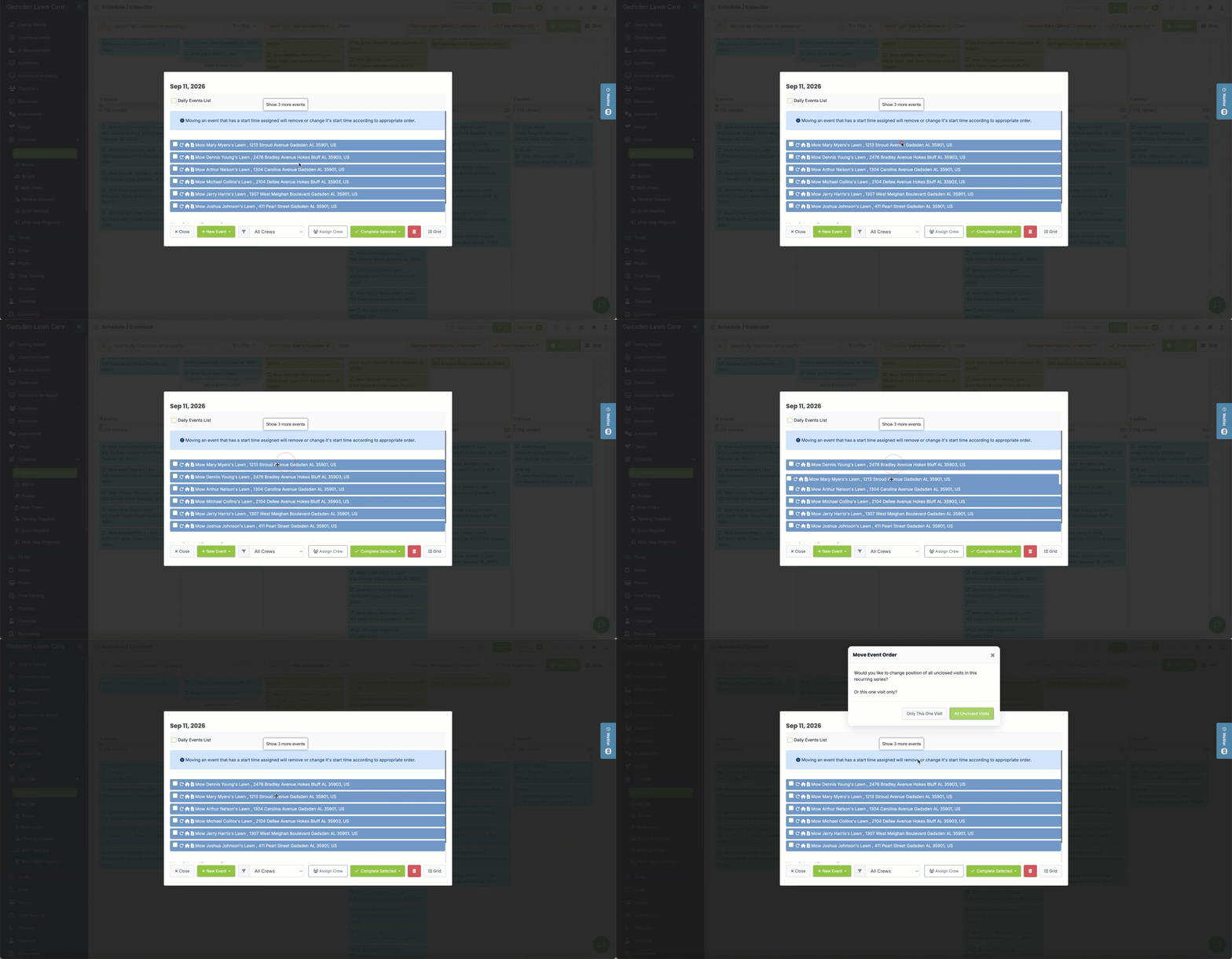
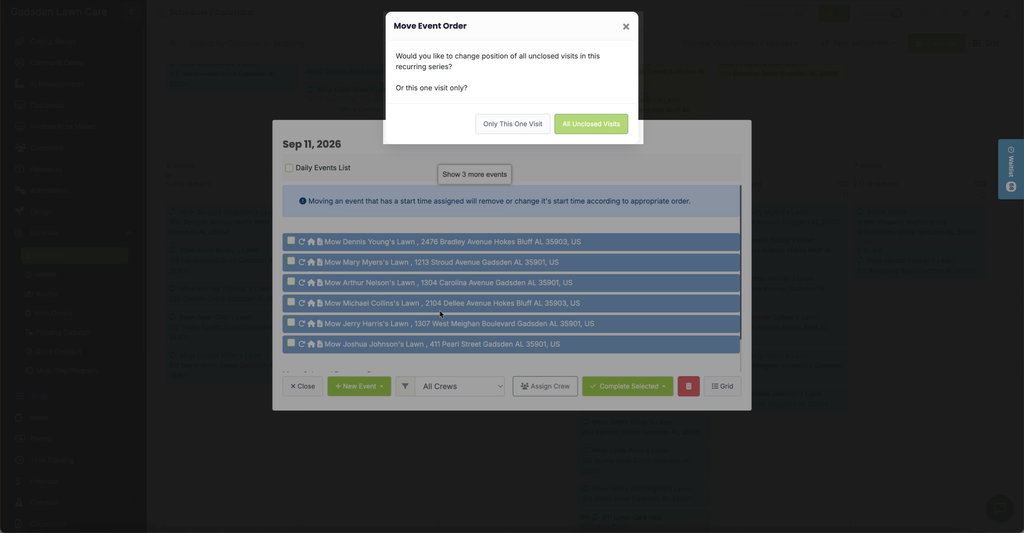
Drag and drop the visits in the list to put them in the order you want. Each visit shows its recurring status, type, and address, with a checkbox to select it.
When you’re done, click “Close” to save the order.
Recurring Visits and Start Times
If a visit in the list has a start time assigned and it’s part of a recurring series, a banner at the top of the popup warns you:
Moving an event that has a start time assigned will remove or change its start time according to appropriate order.
Keep this in mind if you rely on specific start times for your visits.
If you actually drag a visit that’s part of a recurring series to a new position in the list, a separate “Move Event Order” popup appears, asking:
Would you like to change position of all unclosed visits in this recurring series? Or this one visit only?
Choose “Only This One Visit” to reorder just that occurrence, or “All Unclosed Visits” to apply the same position change to the rest of the series.
Bulk Actions from the Daily Events List
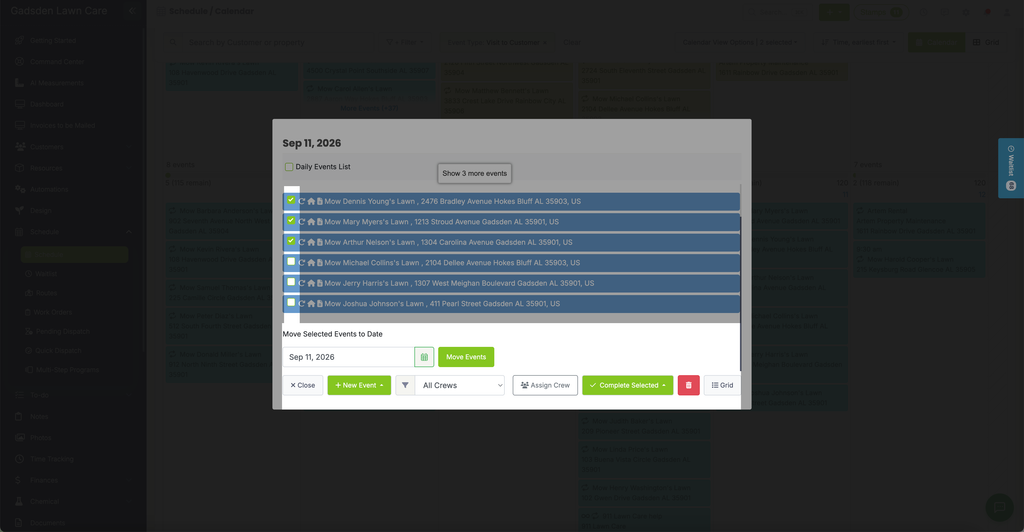
Check the box next to one or more visits to act on them without leaving the popup:
- + New Event — add a new event to this day
- All Crews — filter the list to a specific crew
- Assign Crew — assign a crew to the selected visits
- Complete Selected — close the selected visits
- The red trash icon — delete the selected visits
- Grid — switch to Grid view for this day