Overview
If you’re switching to LawnPro from another software — or you have a list of customers in a spreadsheet — you don’t have to add them all one by one. LawnPro lets you import your entire customer list at once using a CSV file.
Import Customers
To import your customers, first, go to Customer screen, by going to Customer Tab>Customers.
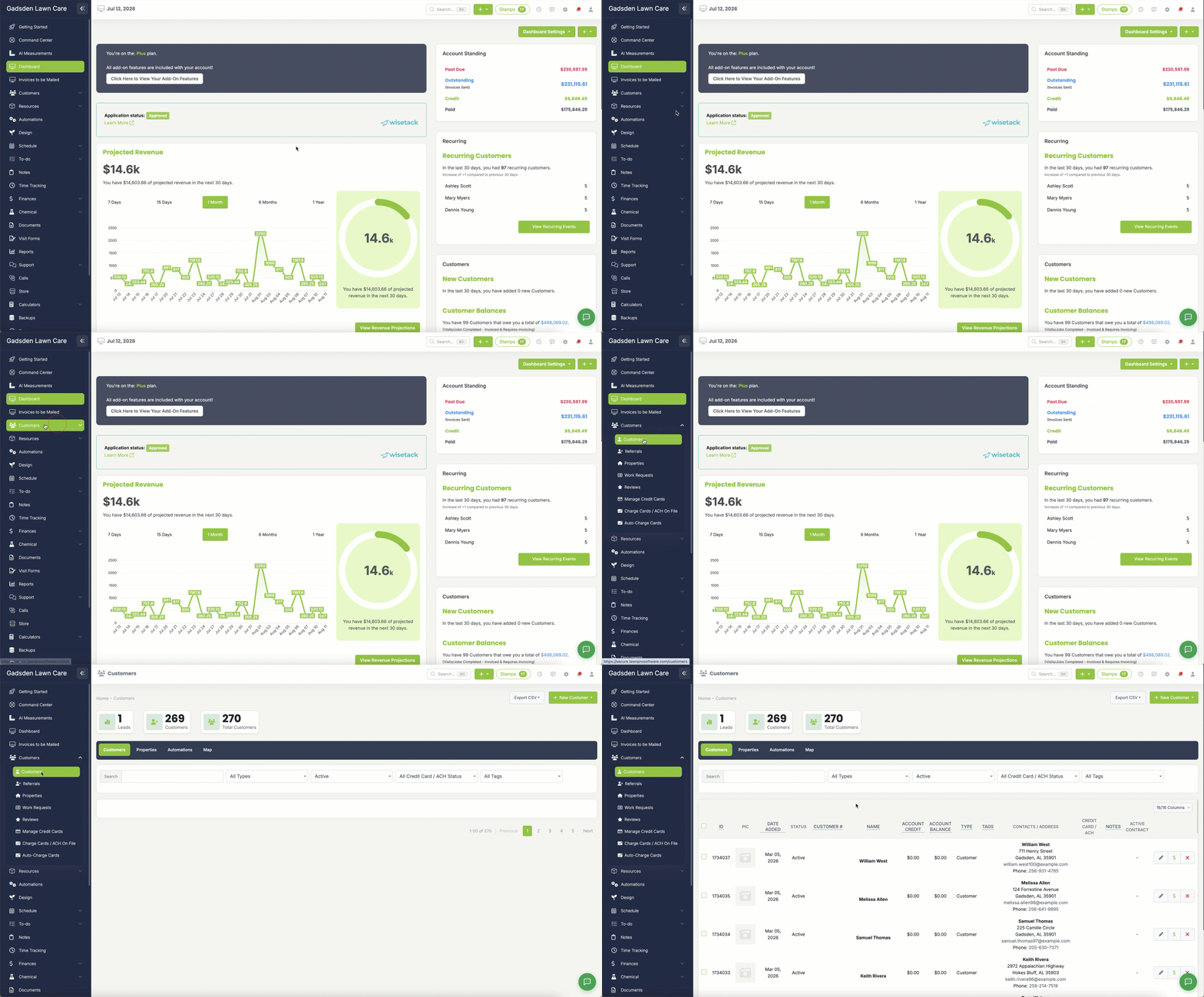
Then click the green “+New Customer” button and then select “Import Customers“
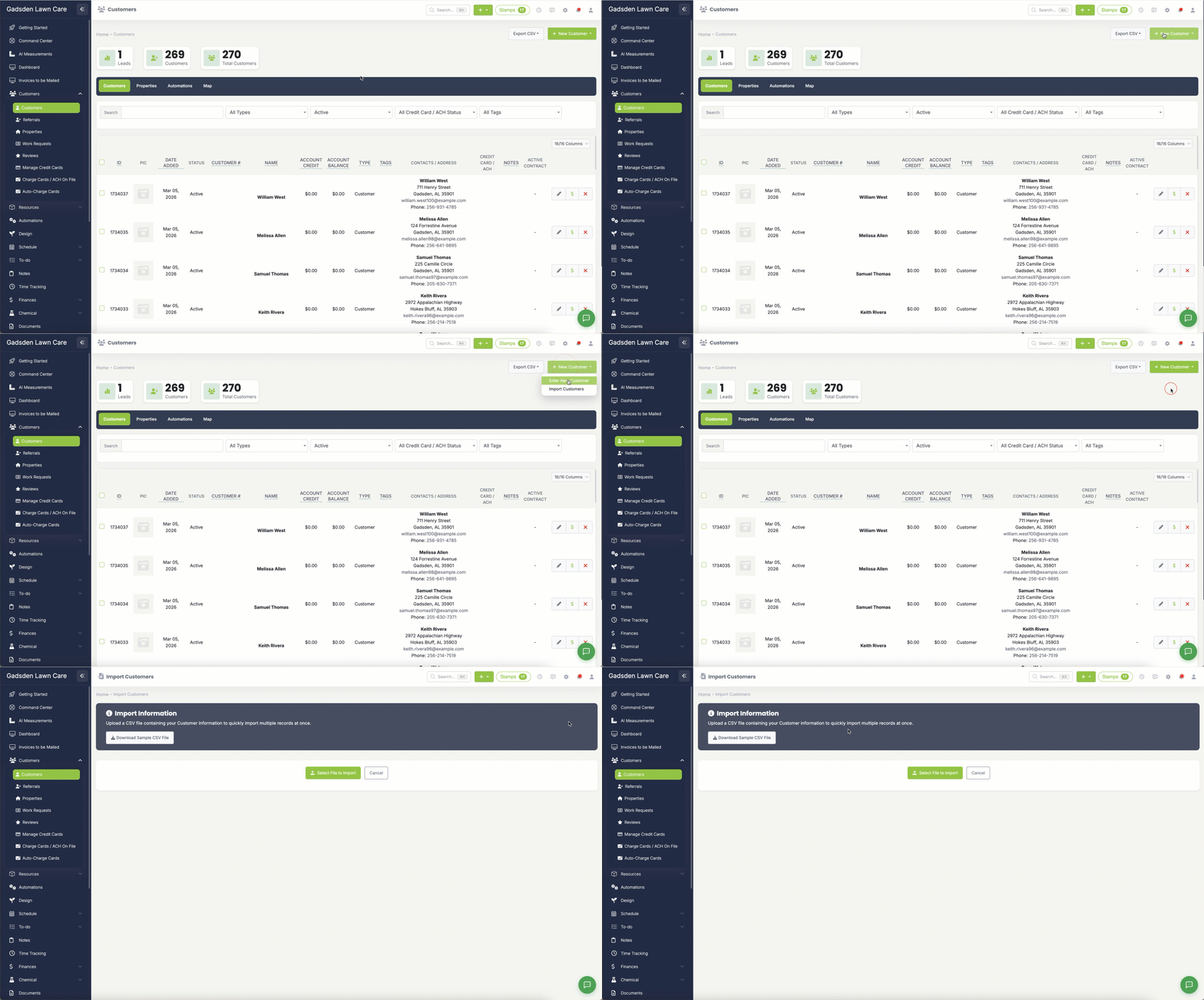
You’ll land on the import page. Before you do anything else, we recommend downloading the sample CSV file first. Click the Download Sample CSV File button and open it up. This shows you exactly how your file needs to be formatted — what columns are expected and how the data should be laid out. Use this as your guide when preparing your own file.
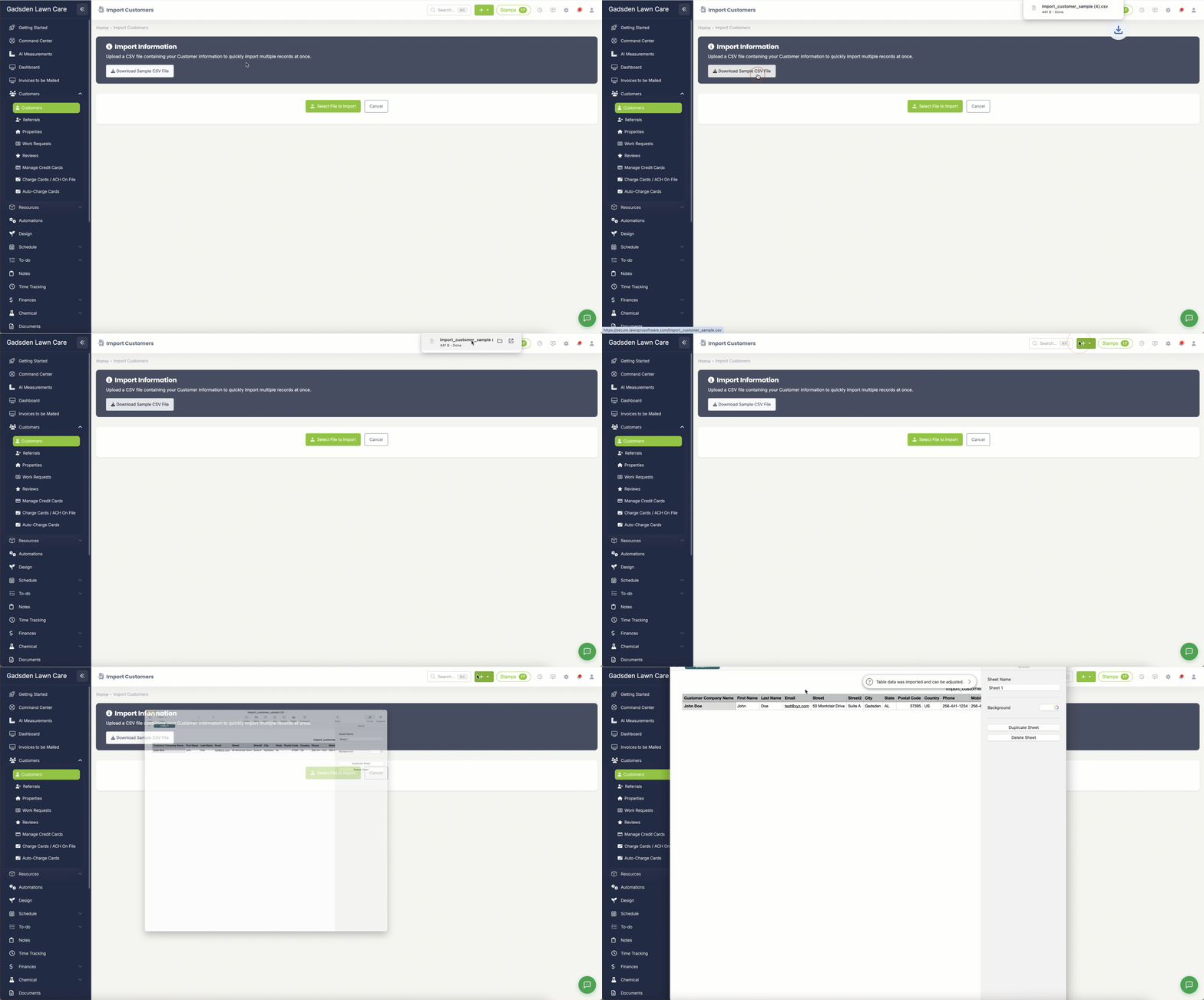
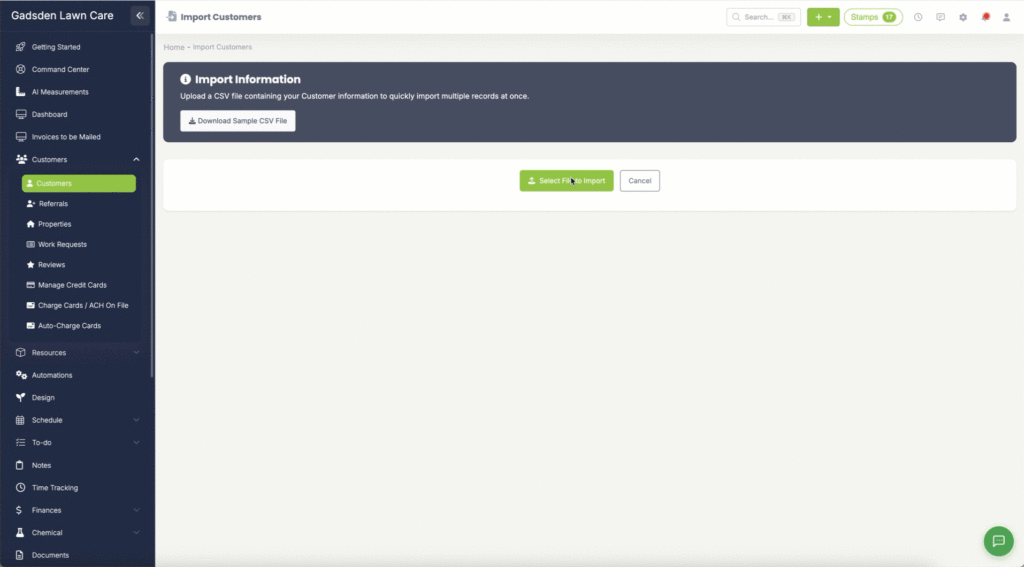
Once you have your file ready (I’m just using the sample file for this example) click the blue “Click to Select File to Import” button.
Select your file and upload it
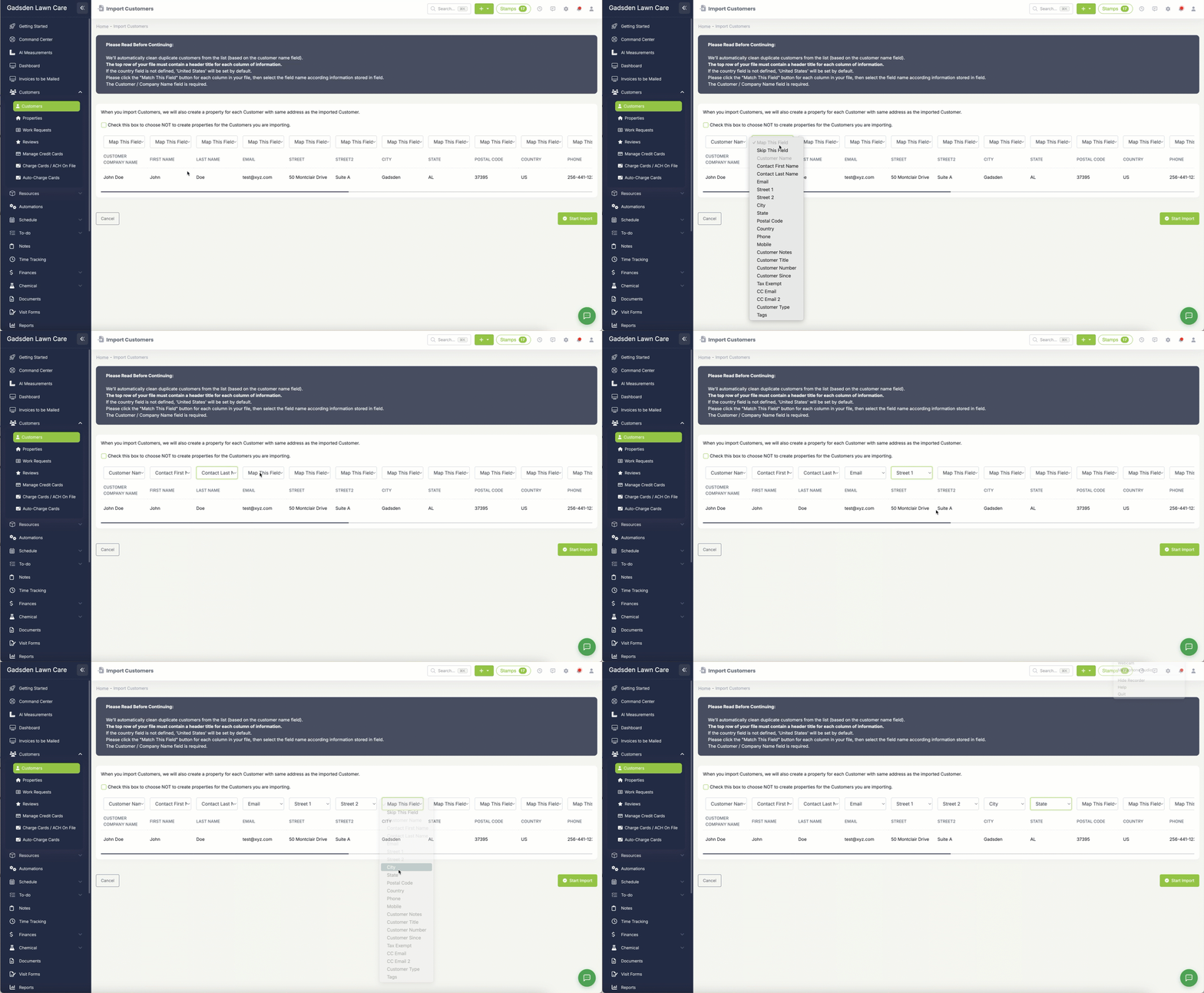
After the file uploads, LawnPro will show you a preview of your data. This is the mapping step — and it’s important to get right.
At the top of each column you’ll see a dropdown. You need to use these dropdowns to tell LawnPro what type of information is in each column. So for example, above the column that has first names you’d select Contact First Name. Above the email column you’d select Email. Above the address column you’d select Address — and so on for each column in your file.
Take your time here and make sure every column is matched correctly. This is what ensures your customer data ends up in the right fields in LawnPro.
Once everything is mapped, click the green Start Import button.
If successful you will see a success message.
You can then view your newly imported customers using the “Customers Page” button.