Table of Contents
- Overview
- Opening Pause / Off-Season Settings
- Using an Off-Season Schedule
- Creating a New Off-Season
- Pausing a Series Temporarily
- Setting an Off-Season for Multiple Series at Once
Overview
Lawn care is seasonal in most parts of the country. When winter hits, you don’t want to delete all your recurring visits — you just want to pause them until spring. LawnPro gives you two ways to do this: assign an off-season schedule for recurring, seasonal breaks, or pause a series temporarily for a one-time situation like a customer going on vacation.
Opening Pause / Off-Season Settings
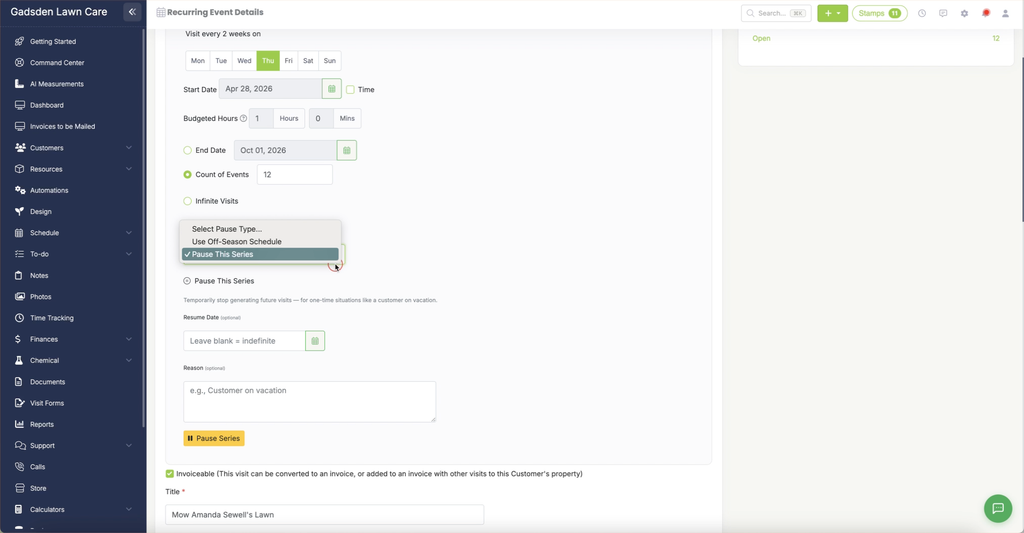
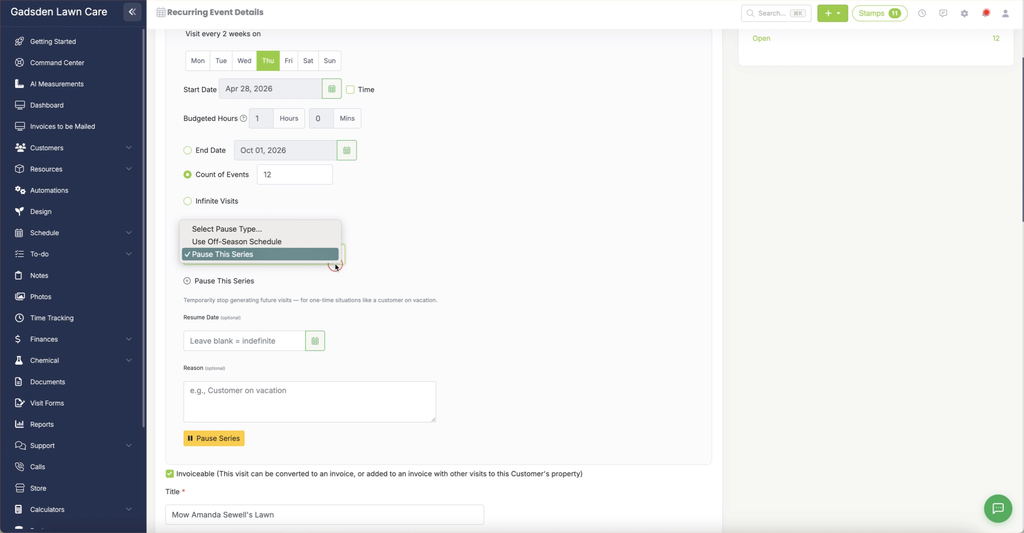
Go to the Schedule tab, click Recurring, find the recurring series you want to update, and click the three-dot Actions menu, then Edit. On the Recurring Event Details page, scroll down to the Pause / Off-Season section.
Click the dropdown and choose either “Use Off-Season Schedule” or “Pause This Series.”
Using an Off-Season Schedule
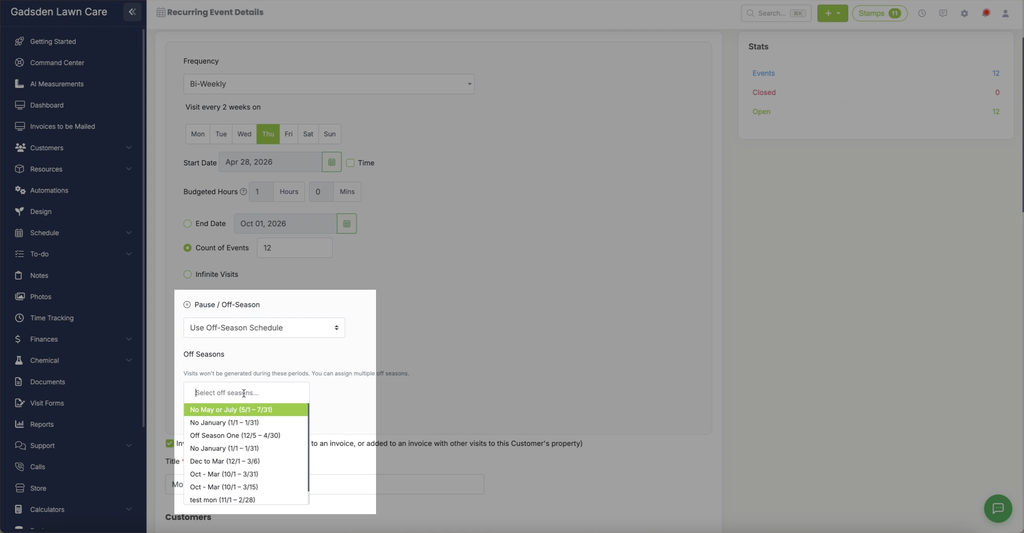
Choosing “Use Off-Season Schedule” reveals an Off Seasons section: “Visits won’t be generated during these periods. You can assign multiple off seasons.” Click “Select off seasons…” to choose from off-seasons you’ve already created — you can assign more than one to the same series.
Creating a New Off-Season
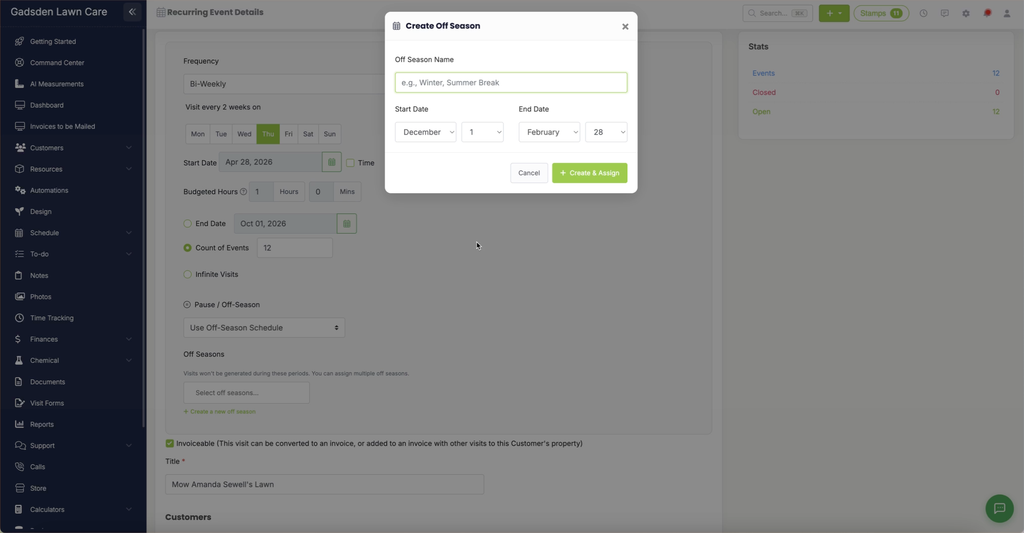
If you need a new one, click “+ Create a new off season” to open the Create Off Season popup:
- Off Season Name — for example, “Winter” or “Summer Break”
- Start Date and End Date — choose the month and day for each
Click “+ Create & Assign” to save the off-season and assign it to this series, or “Cancel” to back out.
Pausing a Series Temporarily
Choosing “Pause This Series” instead is for one-time situations — the description reads: “Temporarily stop generating future visits — for one-time situations like a customer on vacation.”
- Resume Date (optional) — leave blank for an indefinite pause, or set a date for visits to start generating again automatically.
- Reason (optional) — for example, “Customer on vacation.”
Click the yellow “Pause Series” button to apply it.
Setting an Off-Season for Multiple Series at Once
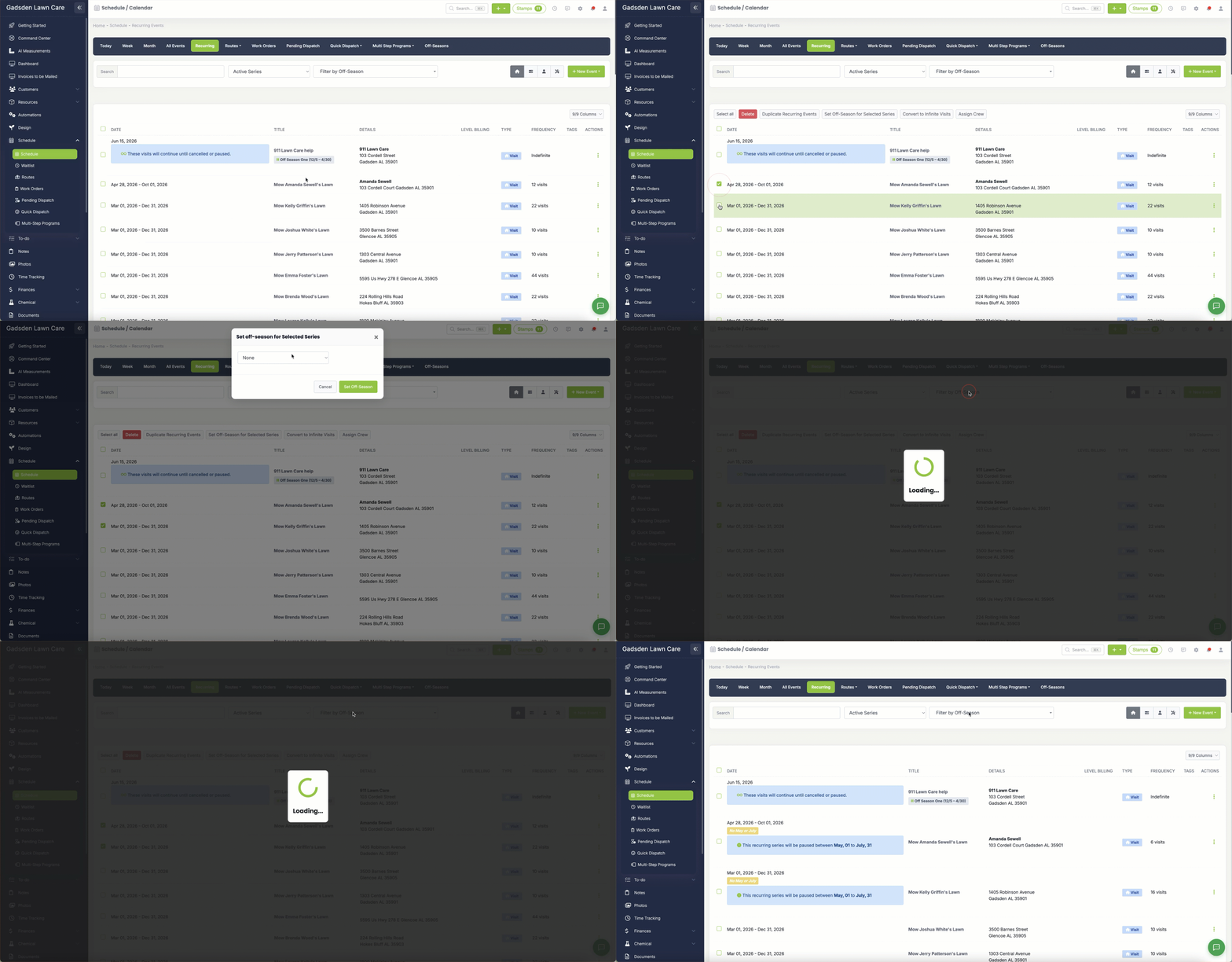
You can also apply an off-season to several recurring series at the same time. Go to Schedule > Recurring, check the box beside each series you want to update, and click “Set Off-Season for Selected Series” in the toolbar that appears. See Recurring Events Page for the full list of bulk actions available there.