Table of Contents
Overview
Once you send a customer an estimate, they can request changes to it instead of simply accepting or declining.
How a Customer Requests Changes
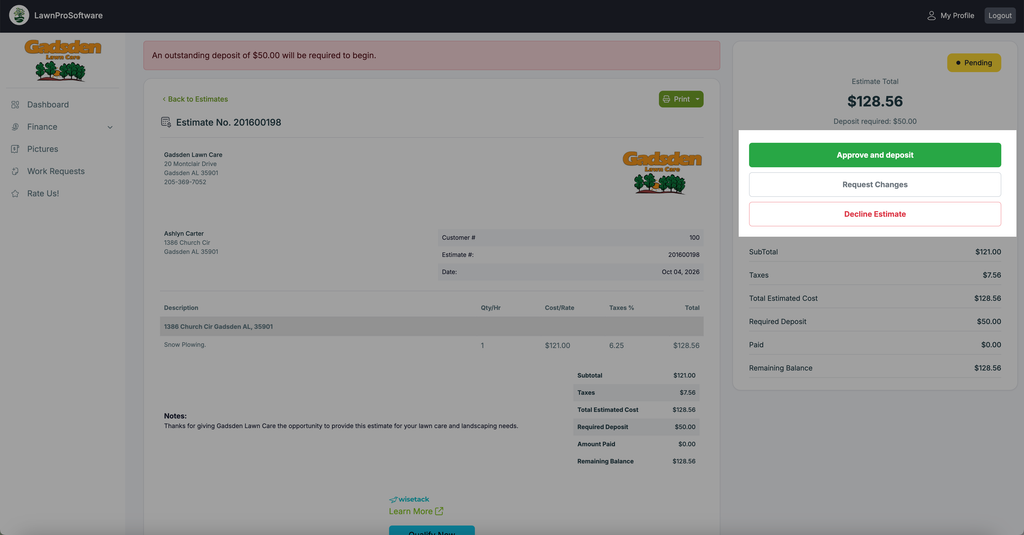
When your customer opens the estimate — either from the link you sent them, or by going to their client portal and clicking Finances > Estimates — they’ll see a “Request Changes” button alongside “Approve and deposit” and “Decline Estimate.”
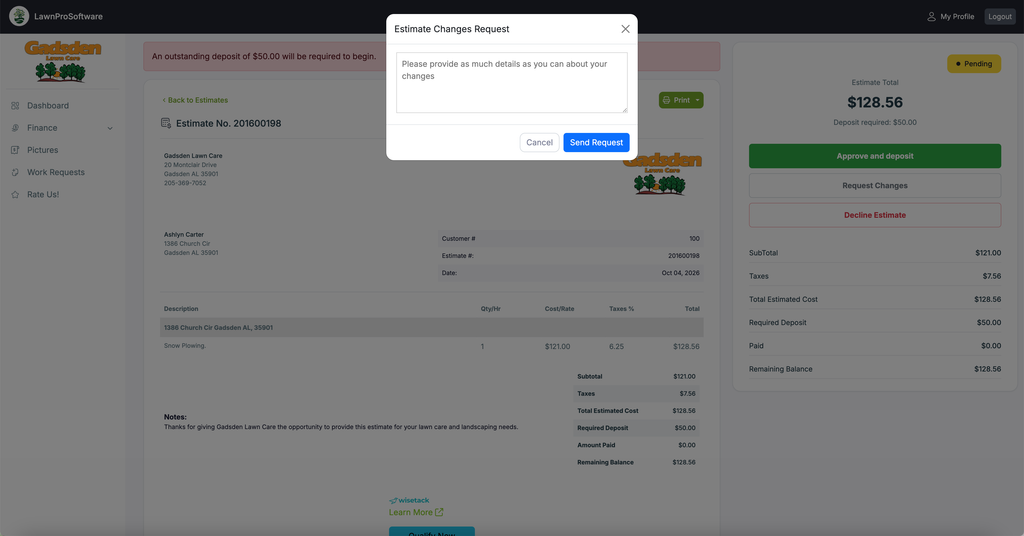
Clicking “Request Changes” opens an “Estimate Changes Request” popup with a text box: “Please provide as much details as you can about your changes.” After describing what they’d like changed, they click “Send Request” (or “Cancel” to back out).
Viewing Change Requests
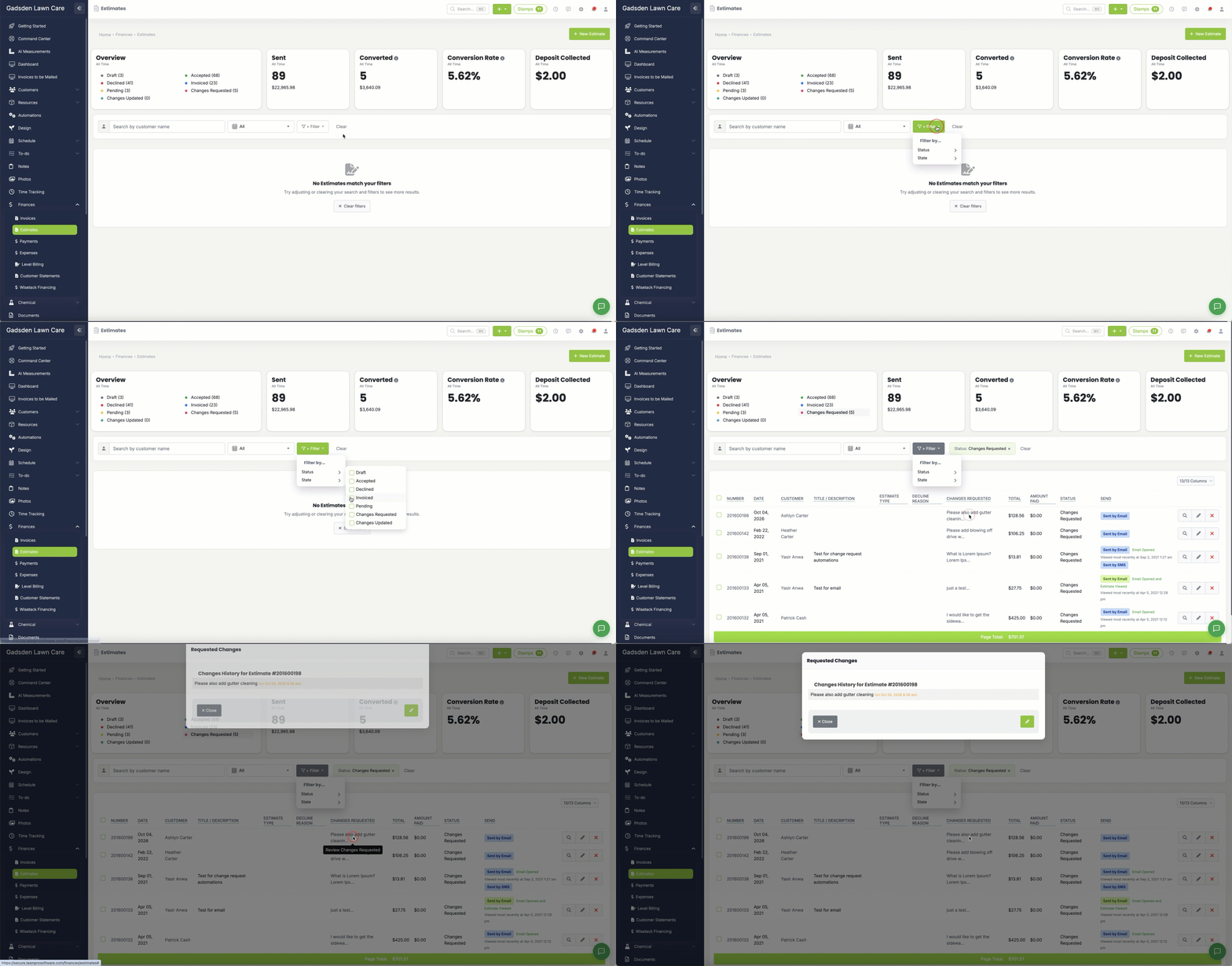
On your end, go to Finances > Estimates, click “+ Filter,” choose Status, and check “Changes Requested” to see which estimates have pending change requests. Open the estimate (click its number or the magnifying glass icon) to read the customer’s requested changes.
Making the Changes and Resending
Click the pencil icon to edit the estimate, make the requested changes, and click “Save Estimate.” Then “Send” the estimate again so your customer can view the updated version.