Table of Contents
- Overview
- Opening Quick Dispatch
- Naming the Template and Adding Properties
- Customizing Each Property
- Adding Services and Assigning Employees to All Properties
- Saving the Template
- Finding and Managing Existing Templates
Overview
A Quick Dispatch Template is a saved group of properties — along with their services, timing, and assigned employees — that you can add to your schedule in one click. This is useful for groups of customers who need the same service, or properties along the same route.
Opening Quick Dispatch
Go to Schedule > Quick Dispatch in the left side menu
Naming the Template and Adding Properties
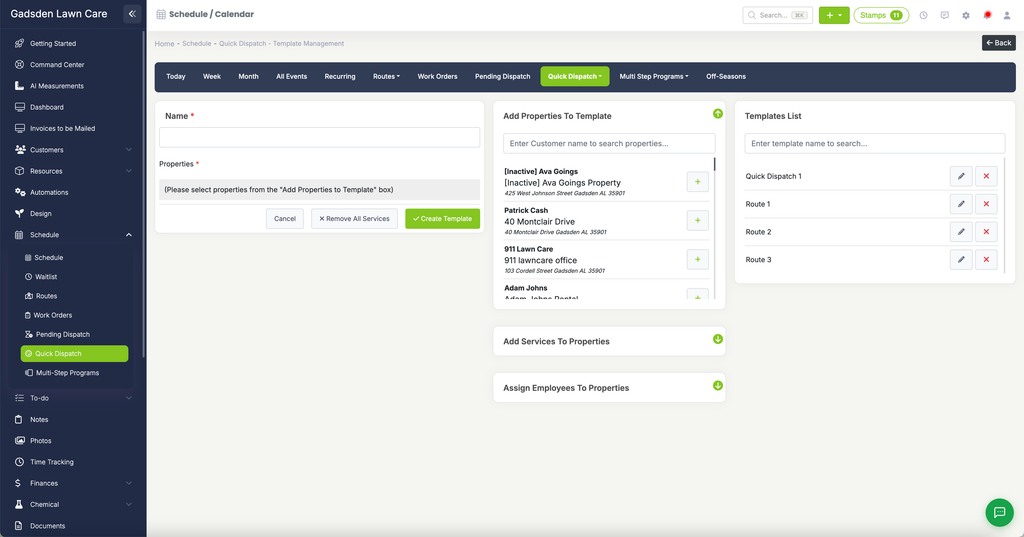
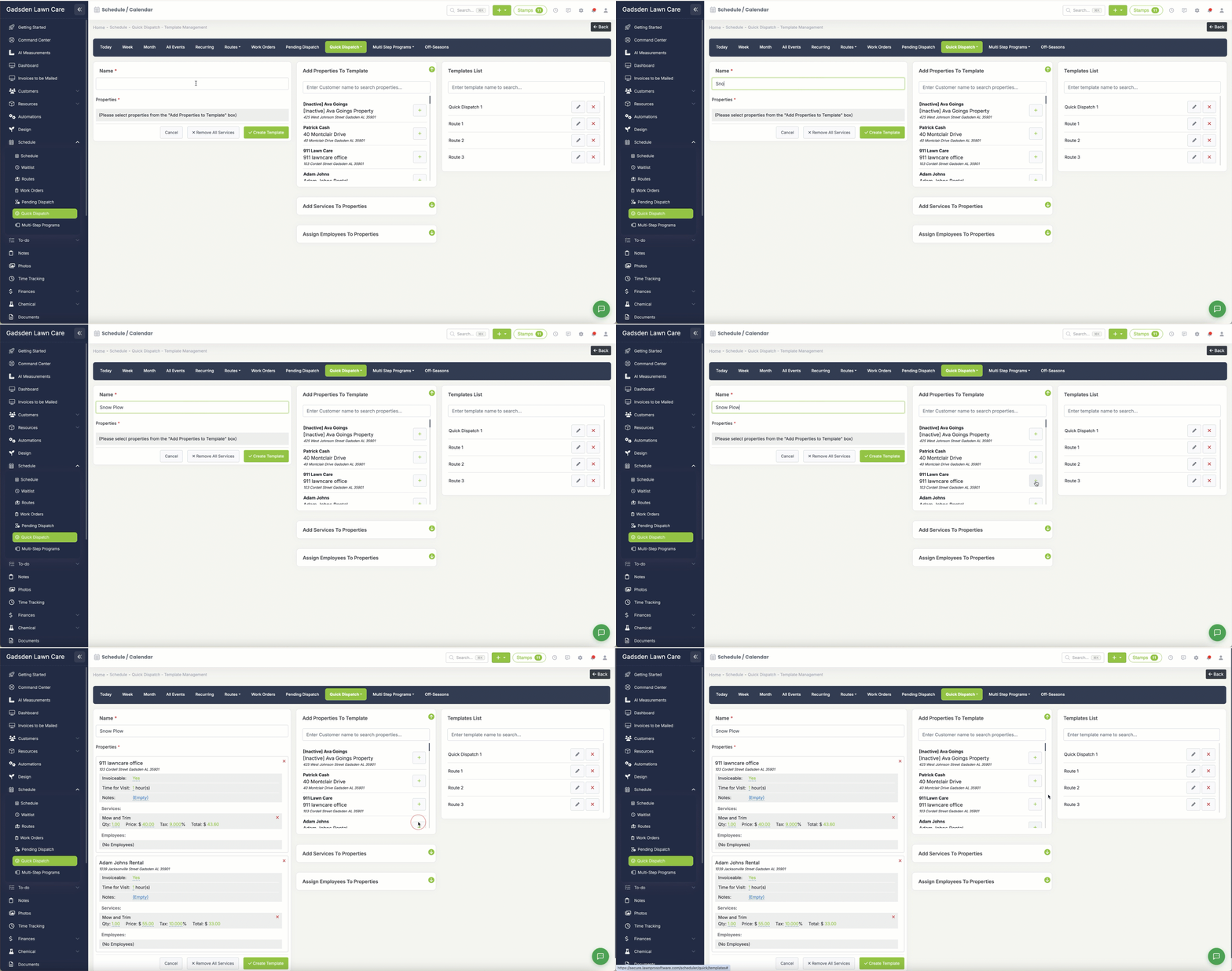
Enter a name for the template in the Name field. Then, using the “Add Properties To Template” panel on the right, search for customers and click the + button next to each property you want to add.
Customizing Each Property
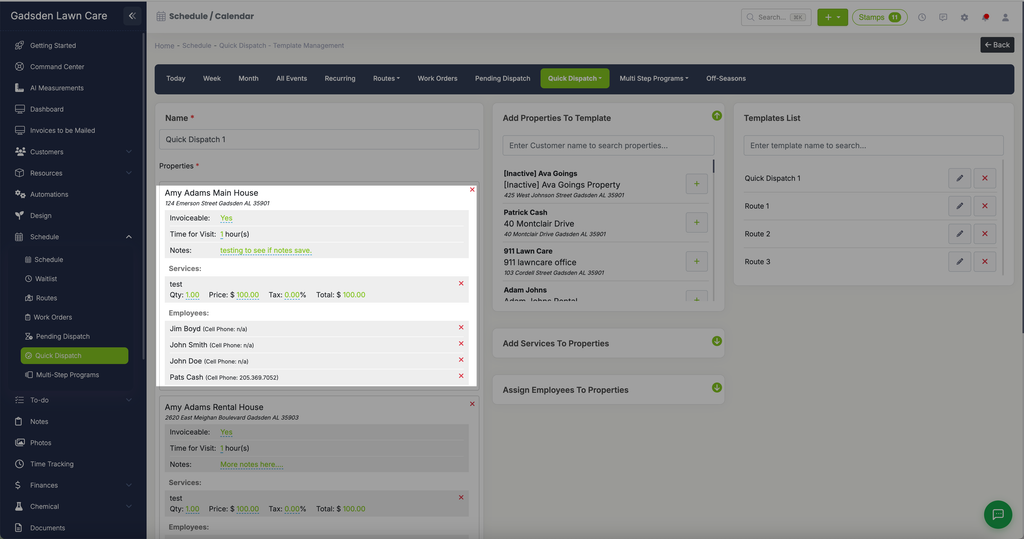
Once a property is added, its card shows several options you can customize:
- Invoiceable — Yes or No
- Time for Visit — the budgeted time, in hours
- Notes — any notes for the visit
- Services — the items/services for this visit, with Qty, Price, Tax, and Total. These default to whatever default items or services are set on the property, and you can remove or edit them here.
- Employees — who’s assigned to this property’s visit
Click the red X next to a property, a service, or an employee to remove it from that card.
Adding Services and Assigning Employees to All Properties
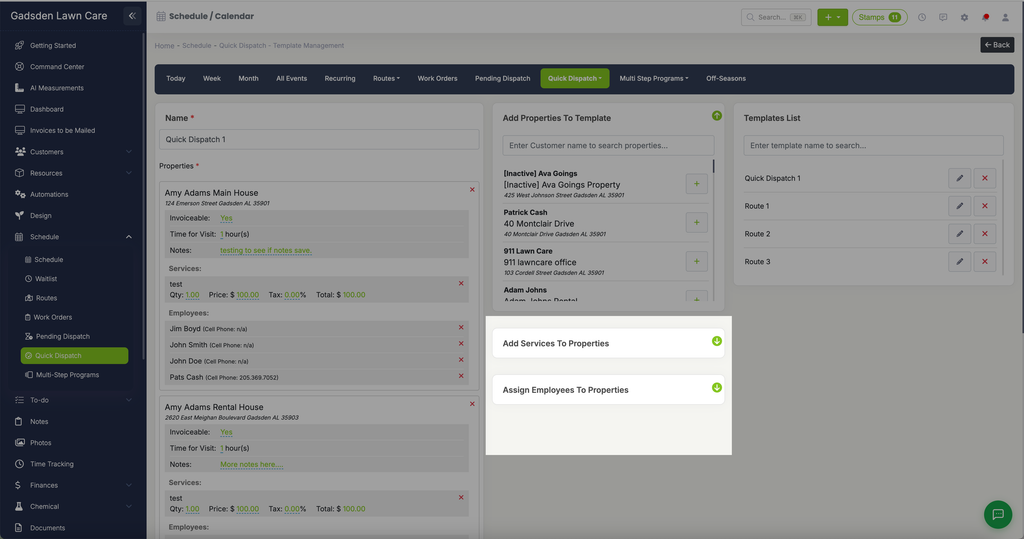
Instead of setting services or employees one property at a time, use the collapsible sections below the property list:
- Add Services To Properties — add a service to every property in the template at once
- Assign Employees To Properties — assign employees to every property in the template at once
Saving the Template
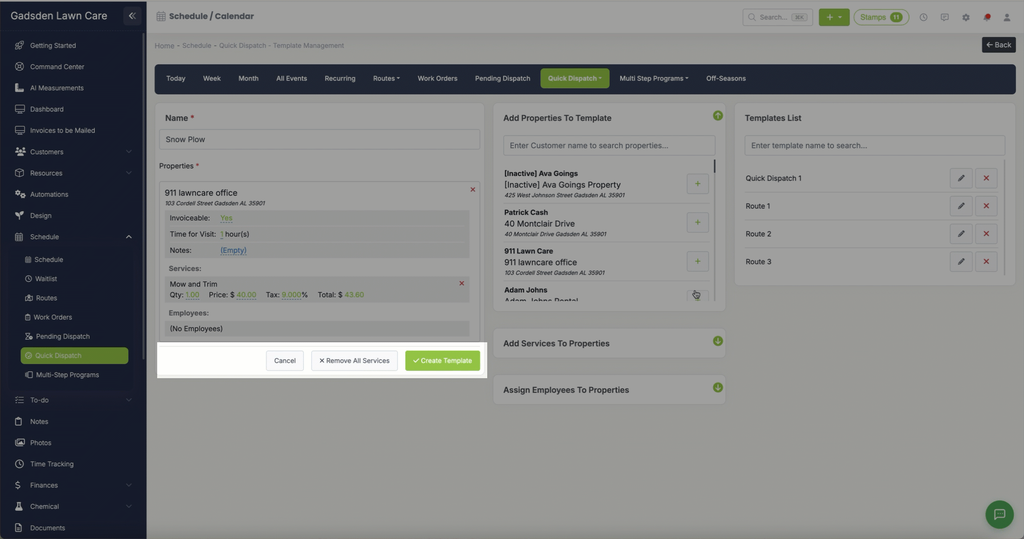
When you’re done, click the green “Create Template” button. Click “Remove All Services” to clear every service from every property, or “Cancel” to back out without saving.
Finding and Managing Existing Templates
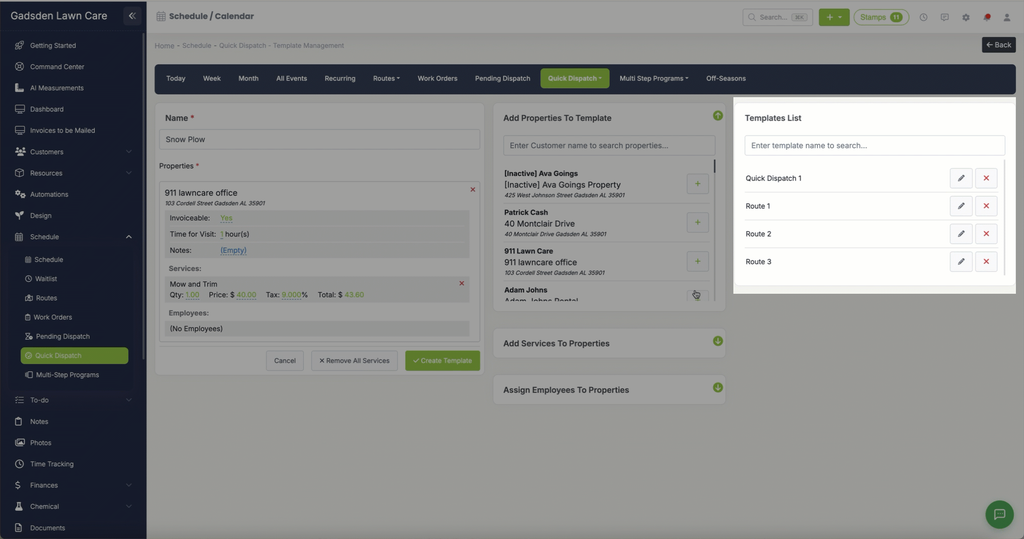
The “Templates List” panel on the right shows your saved templates. Search by name, click the pencil icon to edit a template, or the red X to delete it.