Table of Contents
Overview
Once a customer accepts an estimate, it’s ready to be scheduled. LawnPro helps you keep track of accepted estimates so nothing falls through the cracks.
Viewing Your Accepted Estimates
Click Finances > Estimates, click “+ Filter,” choose Status, and check “Accepted.” The list updates to show only your accepted estimates — rows show the customer, total, and send history, just like the main Estimates Overview.
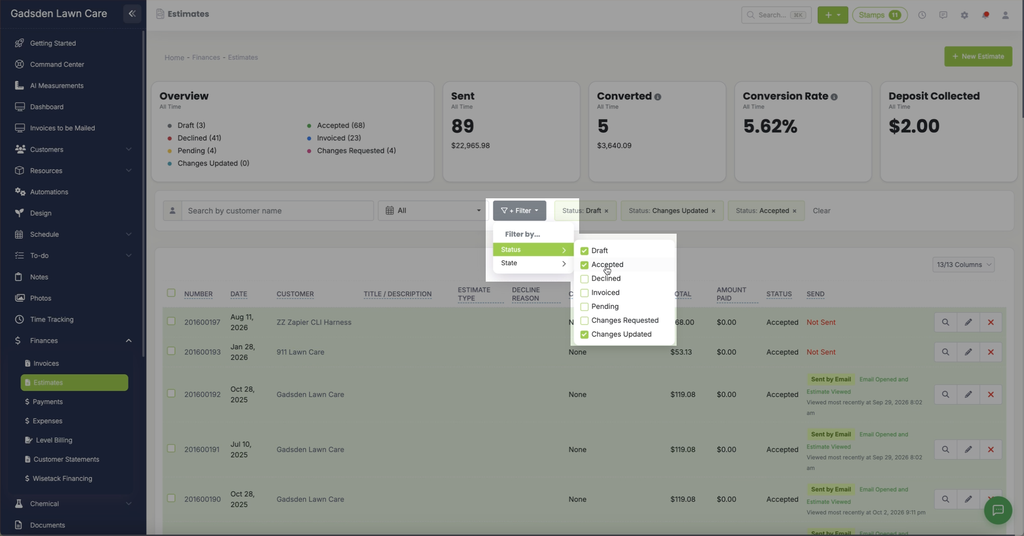
Accepted Estimates on Your Waitlist
Accepted estimates that haven’t been converted to a visit yet also appear automatically on your Waitlist, alongside your other unscheduled work. This gives you a second place — besides the filtered Estimates list — to catch accepted estimates that still need to be scheduled.
When you’re ready to schedule one, see Turn Estimate into Visit.