Table of Contents
Overview
Once an estimate is accepted, you can turn it into one or more scheduled visits. You can schedule the entire estimate at once, or schedule individual line items separately — useful if different parts of the job happen on different days.
Scheduling the Whole Estimate
Open the estimate’s details page (click its number or the magnifying glass icon from the Estimates list). Click “More Actions,” then choose “Schedule Visit.”
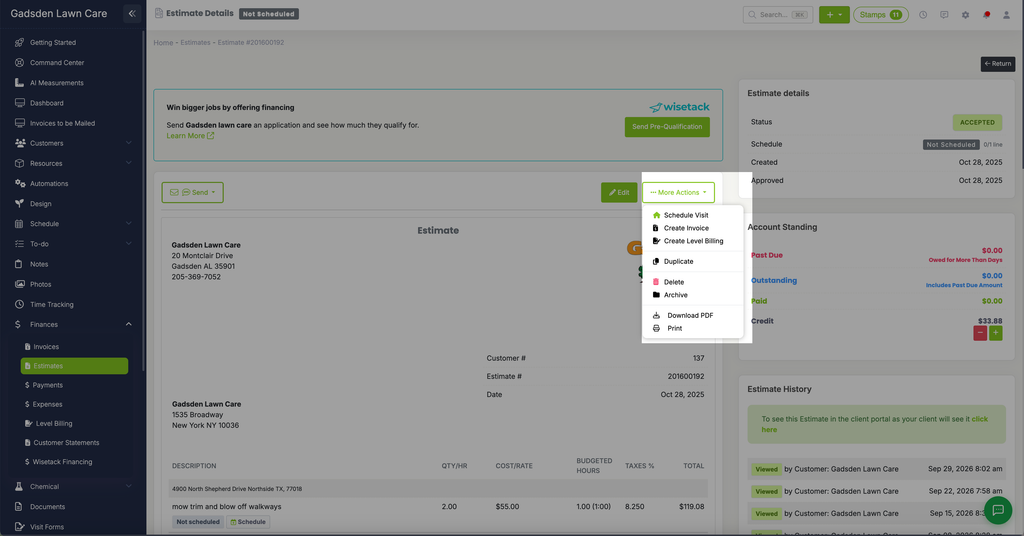
The “Estimate details” panel on the right shows the current schedule status — for example, “Not Scheduled” along with how many of the estimate’s lines have been scheduled (such as “0/1 line”).
Scheduling a Single Line Item
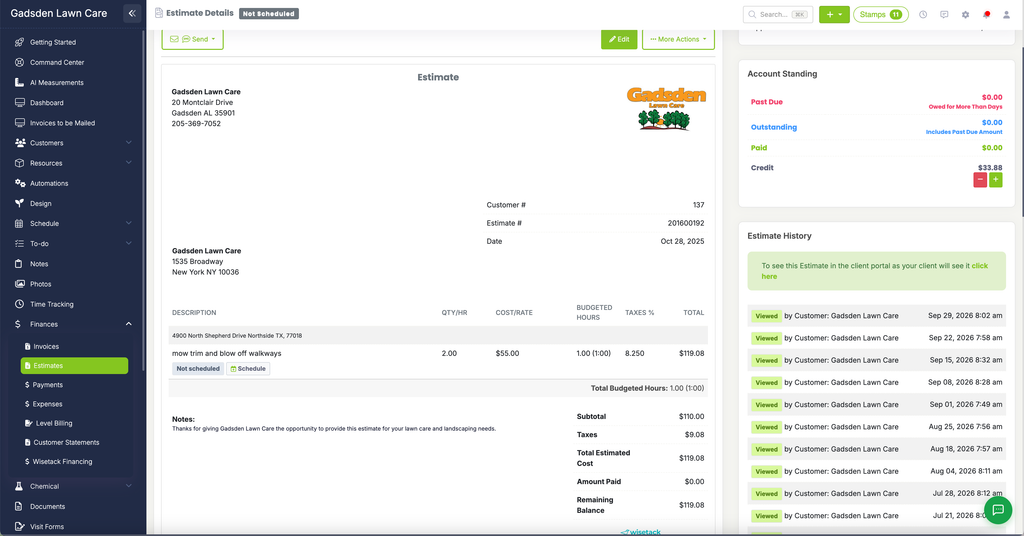
Scroll down to the line items on the estimate. Any line that hasn’t been scheduled shows a “Not scheduled” badge and a “Schedule” button right next to it. Click “Schedule” to turn just that line into a visit, without scheduling the rest of the estimate.