Table of Contents
Overview
LawnPro has the option to keep track of your inventory. You can add your items to your inventory and when you use those items on visits, it automatically tracks that for you.
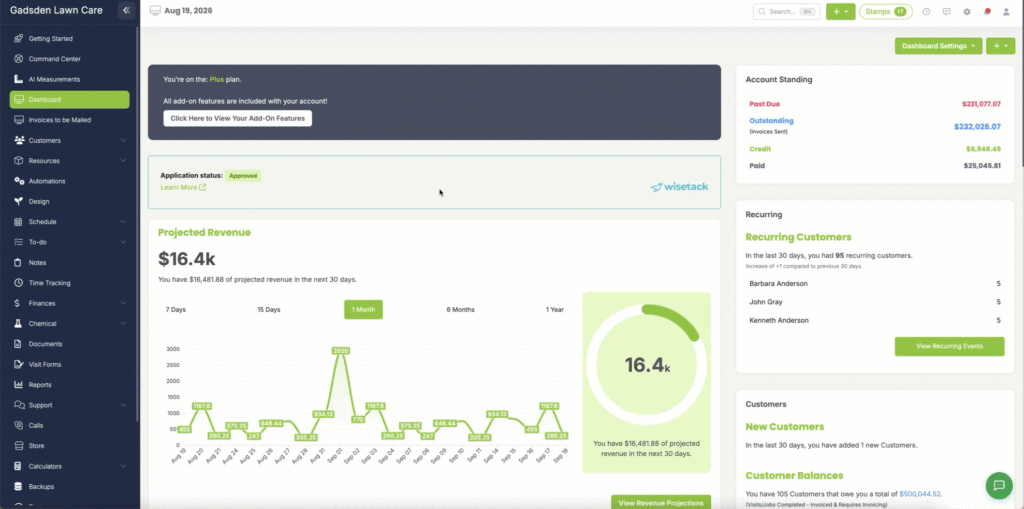
To make an item part of your inventory, you will first go to the Resource Tab> Items and Services and add a new item or edit an existing one.
Creating a New Inventory Item
To create a New Inventory Item, you will go to the Resource Tab>Items and Services.
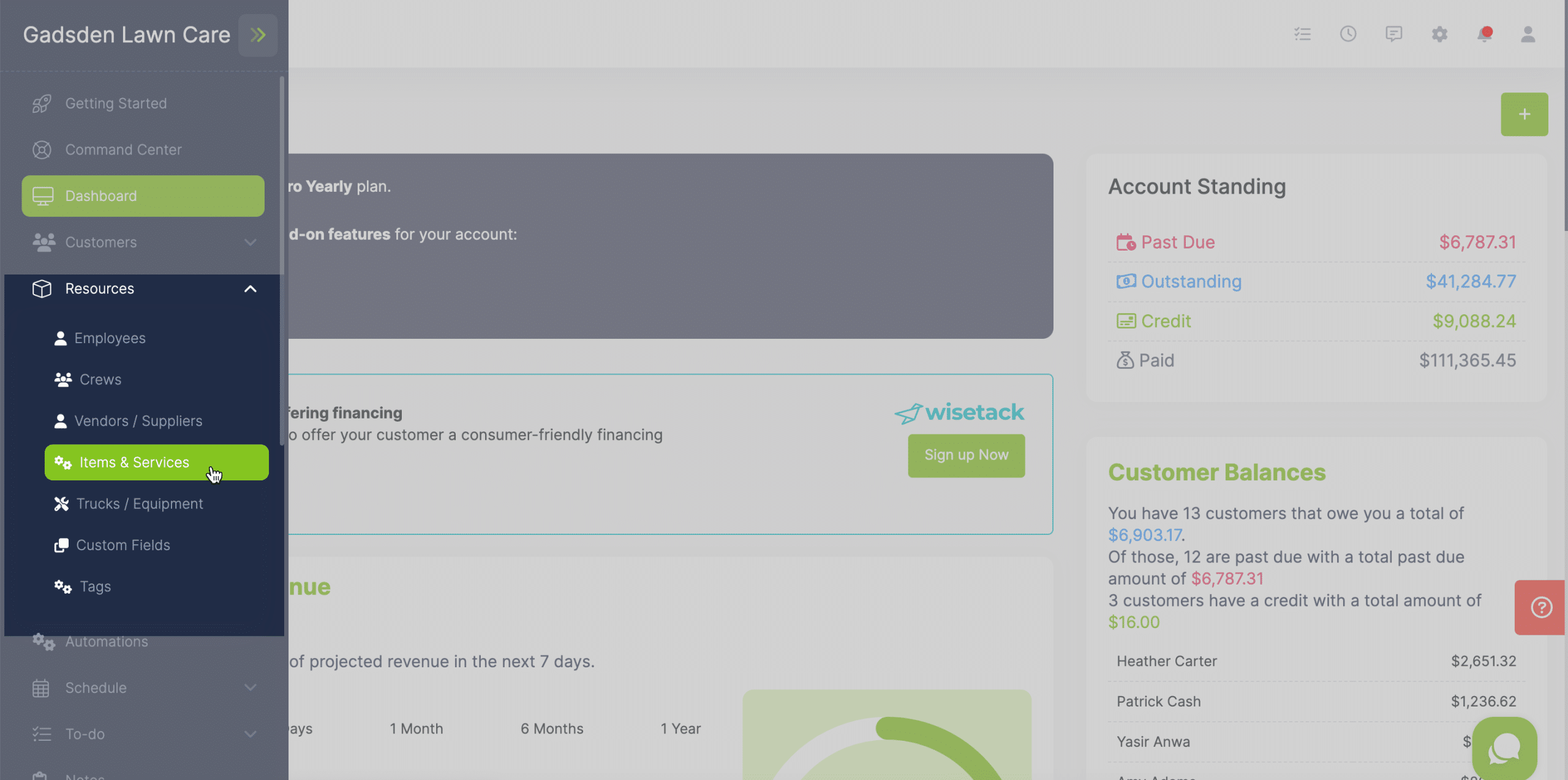
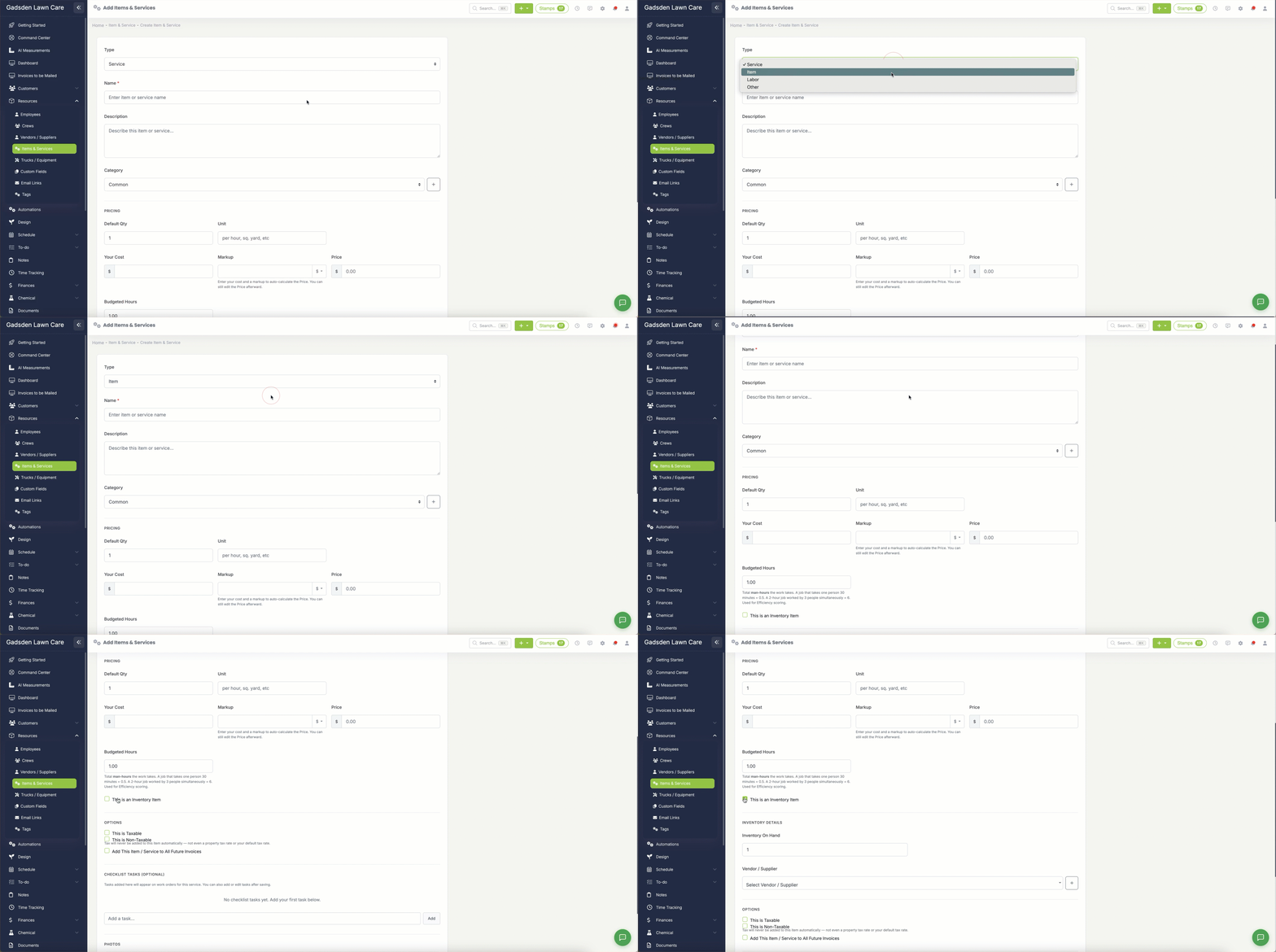
Next, select the green “+ Items & Services” button and select “New Item or Service“
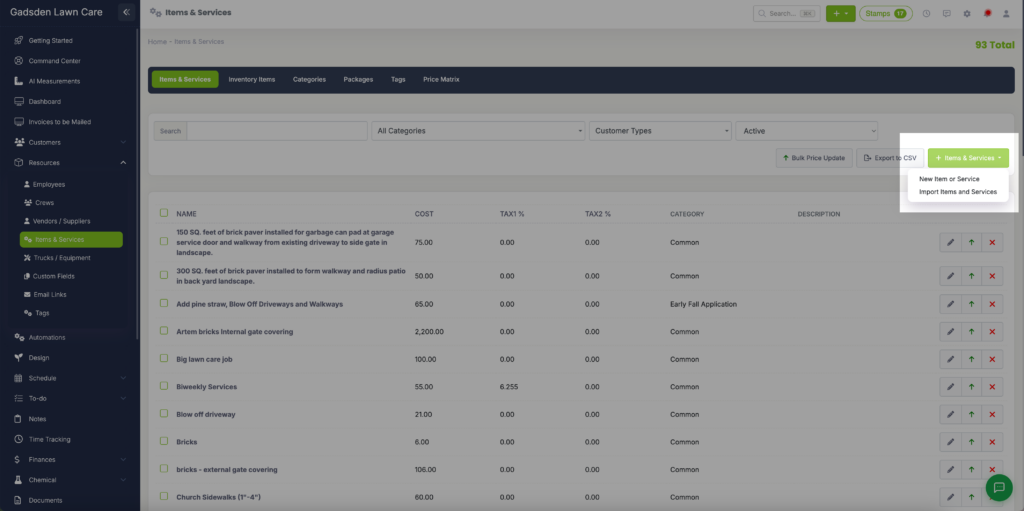
When adding a new item, you will first want to change the “Type” to “Item“
This will add the checkbox for adding this item to your inventory.
Once you select this box, more fields will appear to fill in inventory information.
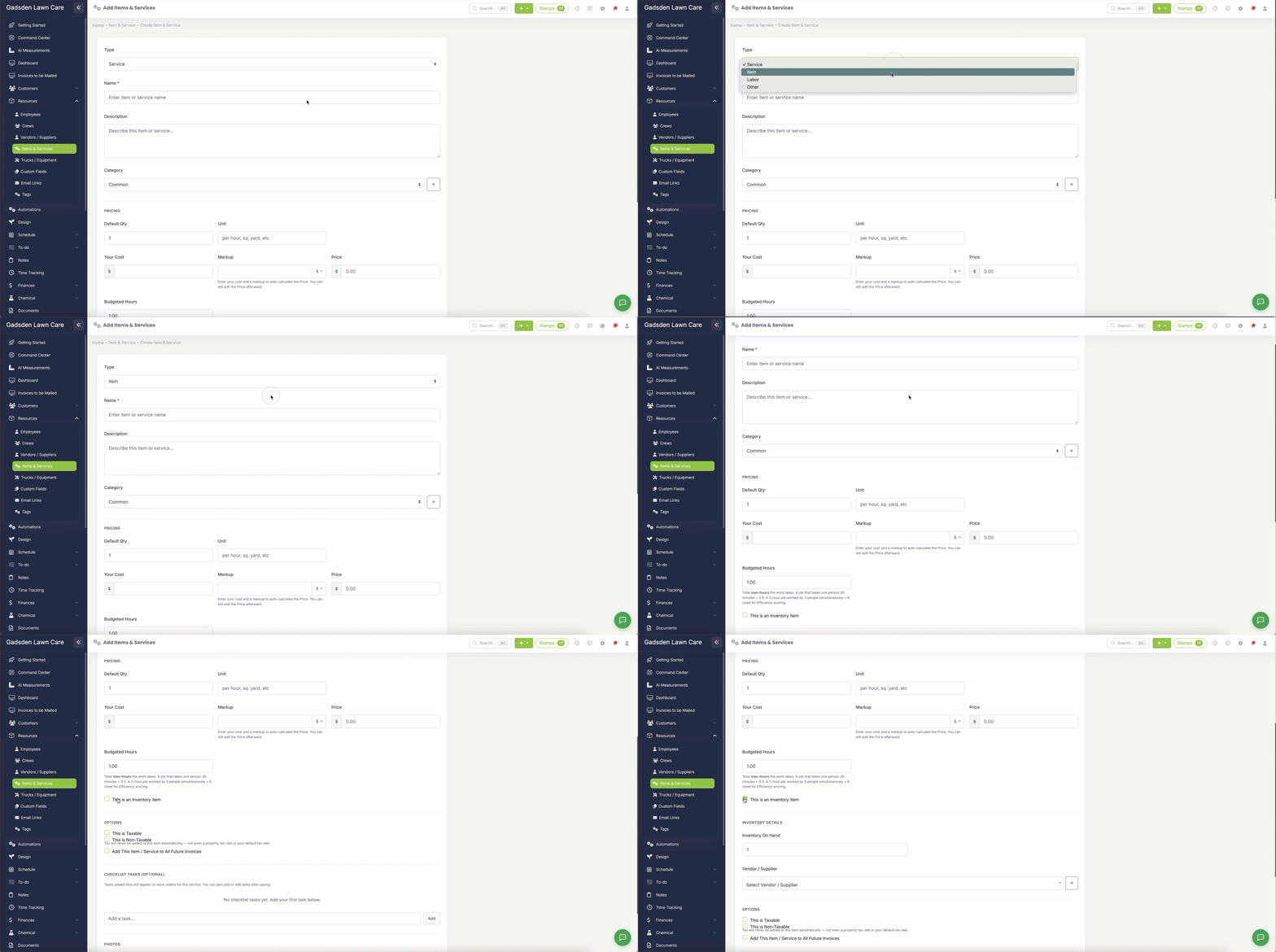
You will then add information about the inventory item.
You will put how many you have on hand and select the vendor/supplier.
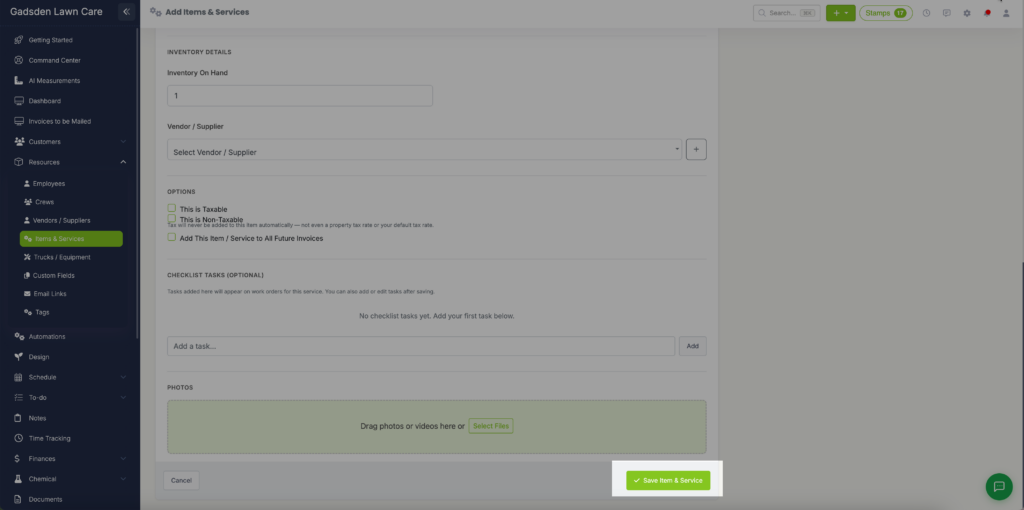
Once you are done entering all of the information for your new item, click the green “Save Item & Service” button.
Adding Existing Item to Inventory
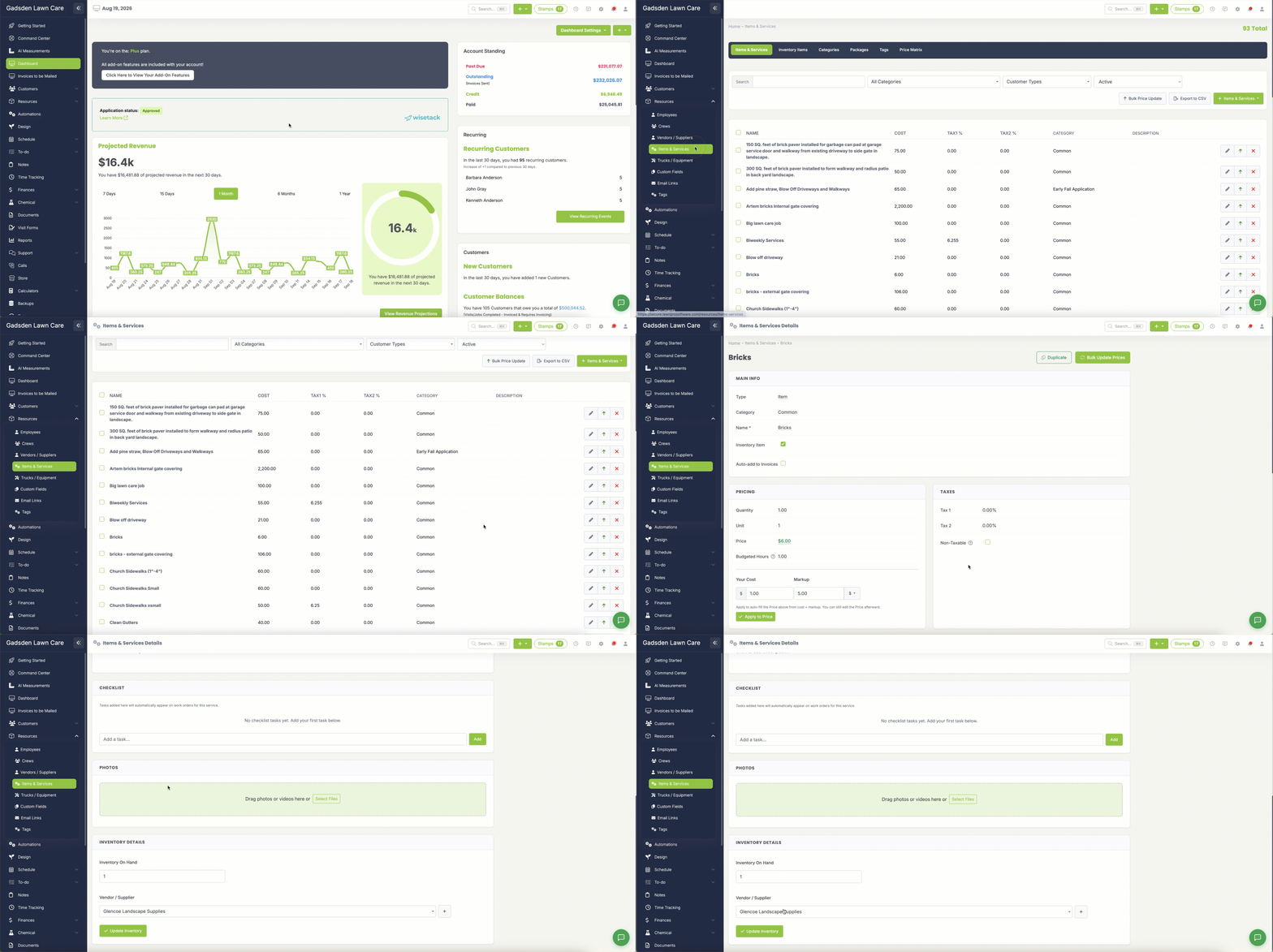
To add an existing item to your inventory you will go to the Resource Tab> Items and Services.
Find the item you would like to add to inventory and click the pencil button for that item.
You will see the Inventory Item area to edit the inventory on hand or the vendor/supplier.
View Your Inventory Items
You can view the inventory items on the Resource Tab>Items & Services
Then select the Inventory Items tab.